Business Web setup guide
WhatsApp Business Web (2026): How to Log In, Link Devices and Run Your Business Inbox on a Computer
WhatsApp Business Web is the same Business account you run on your phone, opened in a browser or the desktop app. This guide covers how to log in with a QR code or phone number, linked-device limits, which business tools work on a computer, how to fix common login and sync problems, and a practical workflow for small teams.
Quick answer
How to use WhatsApp Business on Web
Open web.whatsapp.com in your browser (or install the official WhatsApp desktop app for Windows or Mac). On the phone that runs your WhatsApp Business app, go to More options (⋮) or Settings → Linked devices → Link a device and scan the QR code on the computer screen. On WhatsApp Web and WhatsApp for Windows you can also choose Link with phone number and type the eight-character code into your phone instead of scanning. Your Business chats, labels, quick replies and catalog then appear on the computer. Up to four devices can be linked at once without keeping the phone online, but you must open WhatsApp Business on the primary phone at least every 14 days or the linked devices log out.
There is no separate "WhatsApp Business Web" website or account. It is your existing Business account opened on a linked computer. It is free, it is not the WhatsApp Business Platform (API), and the phone stays the primary device. Configure greeting and away messages, the business profile and most settings on the phone; do the high-volume typing, file sharing and multitasking on Web or Desktop.
Below: what Business Web is (and is not), the QR and phone-number login flows, linked-device limits, which business tools work on a computer, Web vs Desktop, fixes for the most common problems, and a workflow for small teams. Checked against the WhatsApp Help Center articles on linked devices and linking with a phone number on October 19, 2026.
Basics
What WhatsApp Business Web is (and is not)
WhatsApp Business Web is a linked device for a WhatsApp Business app account. The same official site, web.whatsapp.com, serves both personal WhatsApp and WhatsApp Business. It recognises which account the phone links and shows the business features that account has. Messages sync both ways: a reply typed on the laptop appears on the phone, and the reverse.
Three things people often confuse:
- WhatsApp Business app on Web/Desktop: what this guide covers. Free, for small businesses, one phone number shared across up to four linked devices (more with Meta Verified, see below).
- WhatsApp Business Platform (Cloud API): a developer and provider (BSP) product with approved templates, per-message pricing and its own inbox software. You do not open an API number on web.whatsapp.com. See Business app vs Platform vs web extension.
- Browser extensions for WhatsApp Web: add-ons that run inside your logged-in official WhatsApp Web tab. They are third-party tools, not WhatsApp features, and they are different from unofficial "WhatsApp clone" websites or modded apps, which WhatsApp warns can get accounts banned.
For cross-border sellers and multilingual support desks the usual setup is: Business app on a dedicated phone, Business Web on one or more computers where the spreadsheets, order system and price lists already live.
Login
WhatsApp Business Web login: QR code or phone number
Option 1: scan the QR code
- On the computer, open web.whatsapp.com in Chrome, Edge, Firefox, Safari or Opera, or open the WhatsApp desktop app. A QR code appears.
- On the primary phone, open the WhatsApp Business app.
- Android: tap More options (⋮) → Linked devices → Link a device. iPhone: Settings → Linked devices → Link a device.
- Unlock with biometrics or your phone PIN if prompted, then point the camera at the QR code.
- Wait for chats to load. The first sync on a busy account can take a few minutes; keep both devices online until it finishes.
Option 2: link with phone number (no camera)
Useful when the phone camera is broken or the computer is across the room. WhatsApp currently documents this on WhatsApp Web and WhatsApp for Windows:
- On the login screen, click Link with phone number (or Log in with phone number).
- Select the country and enter the Business number in international format, then click Next. An eight-character code appears.
- On the phone, tap the Enter code to link new device notification (or go to Linked devices → Link a device → Link with phone number instead), confirm the device name and location, verify your identity and type the code.
If WhatsApp detects an unrecognised device it asks you to confirm before linking. Treat any unexpected code request as a takeover attempt: tap Don't link and never read codes out to someone who messages you.
Log out
On the computer: menu → Log out. From the phone: Linked devices → tap the device → Log out. That is the fastest fix for a laptop you no longer control. Closing the browser tab does not log you out.
Limits
Linked devices: limits, the 14-day rule and Meta Verified
| Rule | What WhatsApp documents | What it means for a team |
|---|---|---|
| Number of linked devices | Up to 4 at once on the Business app | Phone + up to 4 computers, tablets or companion phones share one number |
| Meta Verified | Subscribers can connect up to 10 devices and assign chats to agents | The paid path if 4 seats are not enough. Check availability in your country |
| Primary phone check-in | Log in on the primary phone at least every 14 days | Do not leave the Business phone in a drawer; set a weekly reminder |
| Inactive device | Linked devices are disconnected automatically after about 30 days of inactivity | Seldom-used laptops will need relinking |
| Phone offline | Linked devices keep working without the phone connected | Web keeps working if the phone battery dies mid-shift |
| Primary device | Web, Windows, Mac and iPad cannot be the primary device | You still need the phone to register the number and link new devices |
| Chat history | A newly linked device syncs recent history; older messages may stay on the phone | Keep important records exported, not only "somewhere in the chat" |
Check the list under Linked devices regularly, remove anything you do not recognise, and keep push notifications on so new links are visible. WhatsApp's Help Center also warns that linking your account through unofficial apps or websites can lead to temporary or permanent bans, so only link on web.whatsapp.com, the official desktop apps, tablets or companion phones.
Features
Which WhatsApp Business tools work on Web and Desktop
WhatsApp brought its core small-business tools to Web and Desktop years ago, but setup still leans on the phone. Menus change between versions, so treat your app as the final word:
| Business tool | On Web / Desktop | Tip |
|---|---|---|
| Quick replies | Use them by typing / in a chat |
Create and edit them on the phone. For longer, multilingual scripts see the script library guide |
| Labels | Apply to chats and filter by label | Agree on a short label set (New lead, Quote sent, Paid, Shipped) before you have hundreds of chats |
| Chat filters | Unread, groups and other list filters | Start every shift on Unread |
| Catalog | View and share items in chat | Build and edit products mainly on the phone. See the catalog guide |
| Greeting and away messages | They fire for chats you answer on Web | Configure them on the phone. Templates here |
| Business profile | Visible; editing is phone-first | Keep hours honest. Profile guide |
| Broadcasts / broadcast lists | Historically phone-only or limited; varies by version and region | Check your app. Also see broadcast list vs bulk sender |
| Files, images, documents | Drag and drop from the computer | The biggest time saver vs the phone. Keep price lists in one shared folder |
Rule of thumb: configure on the phone, operate on the computer. If a teammate cannot find a setting on Web, it usually lives in the Business app under Business tools or Settings.
Web vs Desktop
WhatsApp Business Web vs the desktop app
Both are linked devices on the same account and count toward the same device limit. Pick by how you work:
- WhatsApp Web (browser): nothing to install, works on any modern browser, easy to open on a shared or locked-down PC. Browser extensions only work here, so this is where add-ons such as translators, script libraries and CRMs run. Only one WhatsApp Web tab is active per session; opening a second shows "WhatsApp is open in another window".
- WhatsApp desktop app (Windows from the Microsoft Store, Mac from the App Store): native notifications, keyboard focus and calling features that depend on your version. It cannot run Chrome extensions.
Many teams run both: the desktop app on the owner's laptop, and WhatsApp Web with extensions on the support PCs. Each one uses one of the four linked-device slots.
Troubleshooting
WhatsApp Business Web not working? Common fixes
- QR code will not scan: zoom the browser to 100%, clean the camera, raise screen brightness, or use Link with phone number instead.
- Logged out unexpectedly: the primary phone was not opened for 14 days, the device was inactive for weeks, someone removed it under Linked devices, or browser data was cleared. Relink and add a weekly phone check-in.
- "Too many linked devices": remove an old laptop or tablet from the phone's Linked devices list. Four is the cap without Meta Verified.
- Messages stuck on "waiting" or chats missing: check both internet connections, update WhatsApp Business on the phone, refresh the tab. Older history may only exist on the phone.
- Notifications not showing: allow notifications for web.whatsapp.com in browser settings and in Windows or macOS Focus settings.
- Page broken after an extension update: disable extensions one at a time to find a conflict. WhatsApp Web changes often, and well-maintained extensions update quickly.
- Unsupported browser: update Chrome, Edge, Firefox or Safari; very old versions are blocked.
- Account banned or restricted: that is an account issue, not a Web issue. See WhatsApp account banned.
Operations
A WhatsApp Business Web workflow for small teams
- One Business number, named seats. Rename linked devices in your notes ("Support PC 1", "Sales laptop") so you know which one to log out.
- Shift ownership. Decide who answers unread chats in each hour your profile says you are open. Two people answering the same chat at once confuses buyers.
- Label as you go. Every chat leaves the shift with a status label so the next person can filter by it.
- Approved wording. Keep policy answers (shipping, MOQ, returns, payment) in one script library. See customer service reply templates.
- Media from one source. Price lists, lookbooks and certificates live in a shared folder, not on one person's phone. See sending Drive media on WhatsApp Web.
- Multilingual chats. Translate, then read before sending. See translating WhatsApp messages on Web.
- Records outside the chat. Export important conversations and contacts on a schedule. See chat export and contact export.
- Follow up without spamming. Message people who already asked, at a human pace. See follow-up templates and message limits.
If you need many agents with chat assignment, reporting and SLAs on one number, look at Meta Verified's multi-agent features or the Business Platform. A linked-device setup on the Business app is meant for small teams.
Product fit
Where MSG.AI fits on WhatsApp Business Web
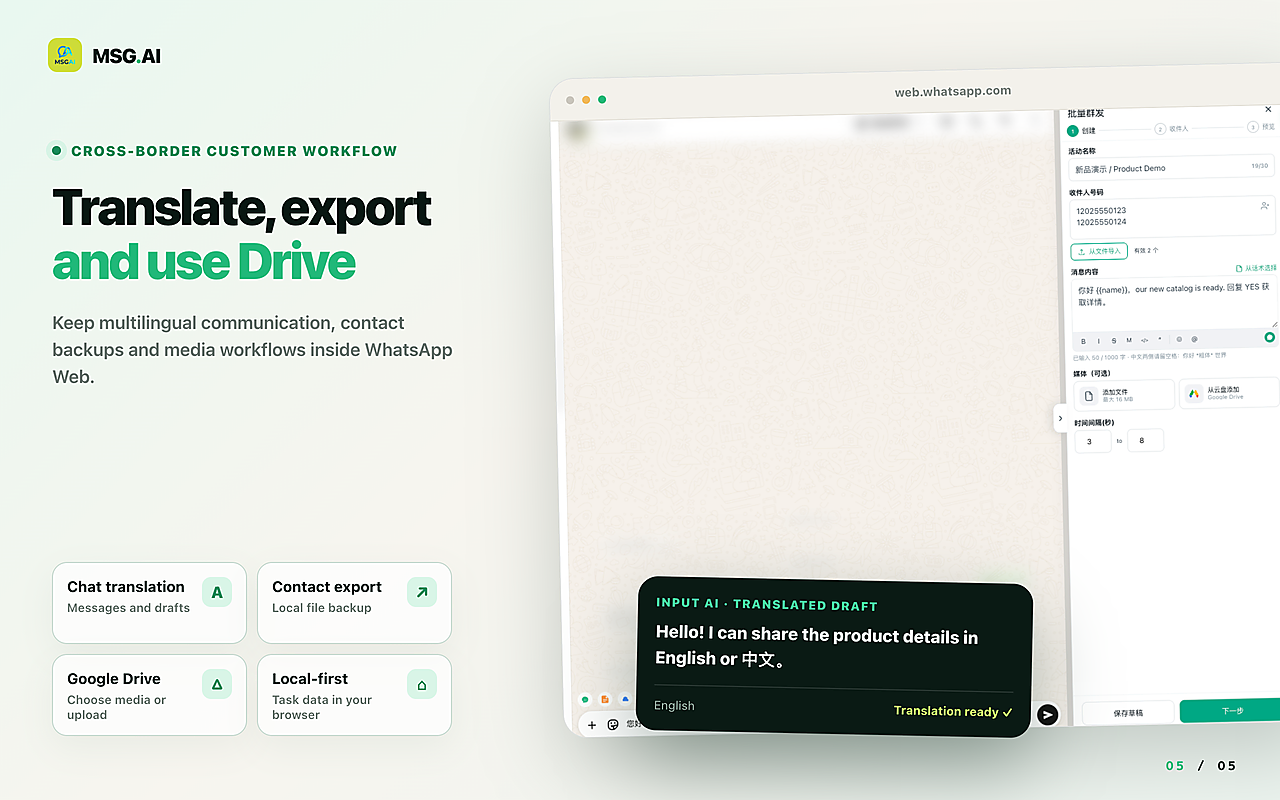
MSG.AI is an independent Chrome extension that runs inside your official WhatsApp Web tab, with a personal or WhatsApp Business account. It does not log in for you, does not replace web.whatsapp.com and does not use the Business API. Once your Business account is linked, it adds the tools the native Web app lacks for cross-border sellers, ecommerce support and multilingual small teams:
- Script library with longer, multilingual answers than native quick replies, inserted into the chat for you to review.
- AI translation of incoming and outgoing messages, plus knowledge-base AI reply drafts that a person reviews before sending.
- Paced bulk send of text, images and video to contacts who opted in, with delays you control. See pacing guide.
- Google Drive media so the whole team sends the same current files.
- Contact, group and chat export for handoffs and records.
- Local storage by default: task data stays in your browser unless you use cloud features such as AI translation.
MSG.AI is not affiliated with Meta or WhatsApp. It cannot add linked-device slots, bypass the 14-day rule, assign chats like Meta Verified multi-agent, or change WhatsApp's limits. Because it only works in the browser, it does not run in the WhatsApp desktop app. WhatsApp discourages bulk and automated messaging on its consumer and Business apps, and that applies to every WhatsApp Web tool, MSG.AI included. No tool can guarantee an account will not be restricted. Send to people who expect your messages, at a human pace.
FAQ
WhatsApp Business Web FAQ
Is there a separate WhatsApp Business Web website?
No. Use web.whatsapp.com or the official WhatsApp desktop app and link it from the WhatsApp Business app on your phone. The same site serves personal and Business accounts.
How do I log in to WhatsApp Business Web without scanning a QR code?
On WhatsApp Web or WhatsApp for Windows, choose Link with phone number, enter your Business number, then type the eight-character code shown on the computer into the phone when prompted.
How many devices can use one WhatsApp Business account?
Up to four linked devices plus the primary phone. WhatsApp says Meta Verified subscribers can connect up to 10 devices and assign chats to agents.
Does WhatsApp Business Web work if my phone is off?
Yes. Linked devices work without the phone online, but you must open WhatsApp Business on the primary phone at least every 14 days or linked devices are logged out.
Can I use quick replies and labels on WhatsApp Web?
Yes. Type / to insert quick replies, and apply or filter labels on Web. Creating quick replies and setting greeting and away messages is mainly done in the phone app.
Is WhatsApp Business Web the same as the WhatsApp Business API?
No. Business Web is the free Business app on a linked computer. The Business Platform (API) is a separate developer and provider product with templates and per-message pricing.
Does MSG.AI work with WhatsApp Business Web?
Yes. MSG.AI runs inside the official WhatsApp Web tab in Chrome for personal or Business accounts and adds scripts, translation, Drive media, paced sending and exports. It does not work in the desktop app and is not affiliated with WhatsApp.
Run the Business inbox where your team already works
Link your WhatsApp Business account to Web, keep the primary phone checked in, set up quick replies, labels and away messages on the phone, then answer on the bigger screen. When you want scripts, translation, Drive media and exports inside that same tab, install MSG.AI from the Chrome Web Store.
Related guides: WhatsApp Business profile, WhatsApp Web customer service tools, WhatsApp CRM Chrome extension, Business app vs Platform.
Frequently asked questions
FAQ
Is there a separate WhatsApp Business Web website?
No. Use web.whatsapp.com or the official WhatsApp desktop app and link it from the WhatsApp Business app on your phone. The same site serves personal and Business accounts.
How do I log in to WhatsApp Business Web without scanning a QR code?
On WhatsApp Web or WhatsApp for Windows, choose Link with phone number, enter your Business number, then type the eight-character code shown on the computer into the phone when prompted.
How many devices can use one WhatsApp Business account?
Up to four linked devices plus the primary phone. WhatsApp says Meta Verified subscribers can connect up to 10 devices and assign chats to agents.
Does WhatsApp Business Web work if my phone is off?
Yes. Linked devices work without the phone online, but you must open WhatsApp Business on the primary phone at least every 14 days or linked devices are logged out.
Can I use quick replies and labels on WhatsApp Web?
Yes. Type / to insert quick replies, and apply or filter labels on Web. Creating quick replies and setting greeting and away messages is mainly done in the phone app.
Is WhatsApp Business Web the same as the WhatsApp Business API?
No. Business Web is the free Business app on a linked computer. The Business Platform (API) is a separate developer and provider product with templates and per-message pricing.
Does MSG.AI work with WhatsApp Business Web?
Yes. MSG.AI runs inside the official WhatsApp Web tab in Chrome for personal or Business accounts and adds scripts, translation, Drive media, paced sending and exports. It does not work in the desktop app and is not affiliated with WhatsApp.
Last checked October 19, 2026. Platform interfaces, policies, coverage and pricing can change. Follow the linked official sources before submitting an application or purchasing data.