WhatsApp Web translator
WhatsApp Web Translator Extension — Auto Translate
Install MSG.AI to auto-translate WhatsApp Web in Chrome. Read incoming messages inline, write in your language, and preview the outgoing translation before you send.
Quick answer
Can WhatsApp Web translate messages automatically?
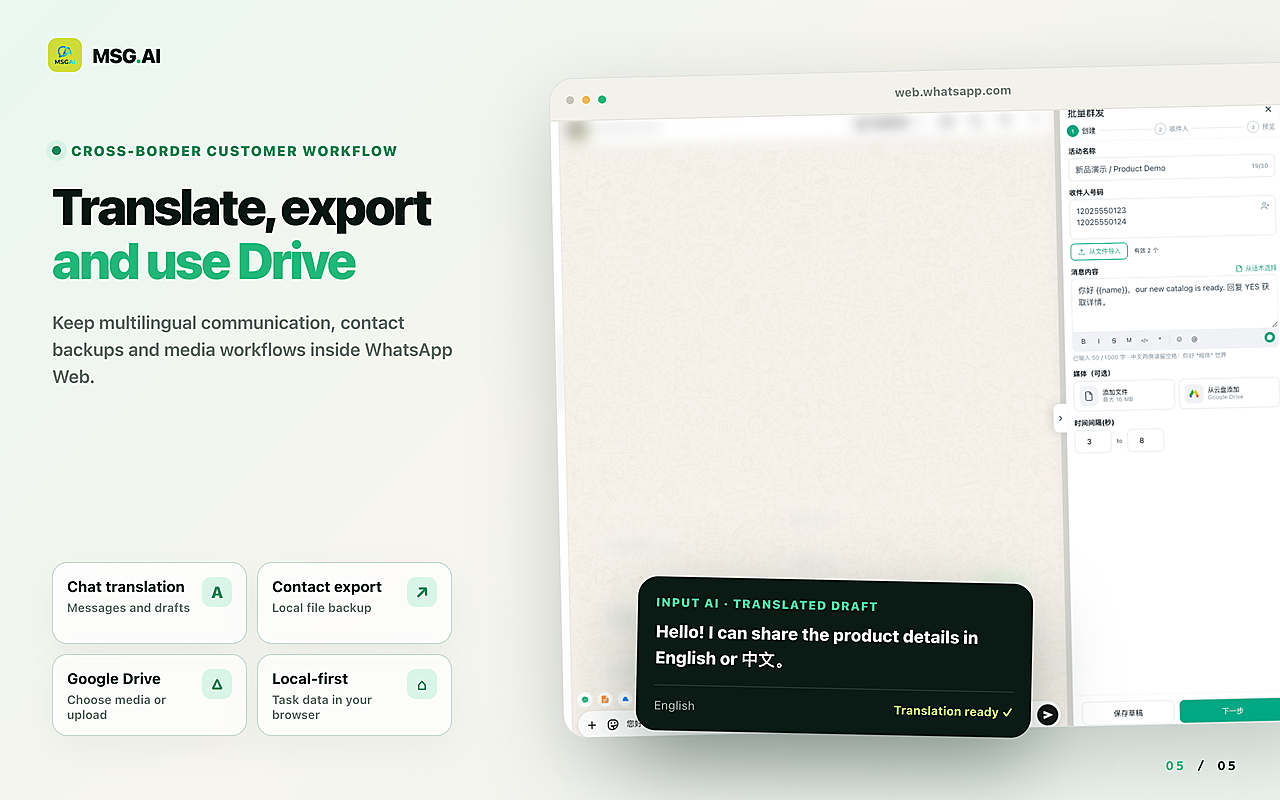
Translation availability differs by device and WhatsApp environment. On desktop, MSG.AI adds a translation layer to WhatsApp Web: translate an individual incoming message, enable global Live Translate for visible text messages, write a reply in your preferred language and preview the translated draft before it is sent.
This is different from translating the whole browser page. A page translator changes interface text; a WhatsApp message translator works with individual chat bubbles and the composer, so the original message remains available for comparison.
Use this workflow when you handle cross-border sales, overseas suppliers or multilingual customer support and need to stay inside the conversation instead of moving text through another tab.
Read the customer
How to translate incoming WhatsApp messages on desktop
- 01
Open the conversation in WhatsApp Web
MSG.AI places a translation action next to supported text messages.
- 02
Translate the message inline
The translation appears with the chat bubble, keeping the sender, timing and nearby context visible.
- 03
Reveal the original when needed
Use the original/translation control to check names, numbers, product codes and ambiguous phrases before replying.
Inline translation is especially useful for short replies such as “same as last time” or “can you do it by Friday,” because their meaning depends on the messages around them.
Write and verify
How to translate an outgoing WhatsApp reply before sending
Choose a target language in the composer or leave the selector on Auto. Write the draft in the language you are comfortable reviewing. MSG.AI creates the outgoing translation and shows a preview before the Enter key or WhatsApp send action completes the send.
The preview matters. Product names, addresses, quantities, dates and commercial terms should be checked in the language that will actually reach the customer. If the draft is wrong, return to editing rather than trying to correct a message after it has been sent.
A practical bilingual check
Keep model numbers, Incoterms and currency codes unchanged; verify whether “delivery” means factory completion, shipment departure or arrival; and preserve the customer’s preferred level of formality.
Continuous workflow
When should you enable WhatsApp Live Translate?
Live Translate reduces repeated clicks when most active conversations are in another language. MSG.AI can translate visible incoming text messages automatically while the global mode is enabled. Manual translation remains better for occasional messages or when remote AI processing is not appropriate.
Automatic translation should improve reading speed, not remove judgment. Pause and inspect the original when a message includes payment instructions, legal wording, account details or a high-impact customer complaint.
Language coverage
Which languages can MSG.AI translate in WhatsApp Web?
The current outgoing-language selector exposes 20 targets: Simplified Chinese, Traditional Chinese, English, Japanese, Korean, French, German, Spanish, Russian, Arabic, Portuguese, Italian, Dutch, Polish, Turkish, Vietnamese, Thai, Indonesian, Hindi and Czech.
Language count alone is not a quality measure. Test your own product terminology, names and customer scenarios before adopting any translator for daily business use.
Customer service playbook
A safer multilingual WhatsApp customer-service workflow
Translate the customer’s latest message and inspect the original.
Write in your strongest language or use a saved script.
Select the customer’s language or Auto mode.
Check names, numbers, dates and commitments in the outgoing preview.
Only complete the send after the translated text says what you intend.
Save recurring, approved language in your scripts or business knowledge.
Two different AI actions
WhatsApp AI translation vs an AI reply generator
Translation converts text you already have. AI Reply decides what to say next by using recent conversation context and, when enabled, your business knowledge base. MSG.AI keeps these actions separate: use translation when the message is already correct but in the wrong language; use knowledge-grounded AI Reply when you need a new, editable response draft.
If you are choosing between tools, see the WhatsApp translator extension comparison for workflow and data-processing criteria.
Processing boundaries
Does WhatsApp AI translation stay on the device?
MSG.AI stores extension settings and its translation cache locally, but requested AI translations use a hosted endpoint. The text needed for the translation is sent for processing. Avoid translating passwords, payment-card data or unnecessary personal information, and choose an on-device option when remote processing is unacceptable.
Translation is also not proof of commercial or legal meaning. A person should verify consequential content before sending.
Frequently asked questions
FAQ
How do I automatically translate WhatsApp messages on my computer?
Open WhatsApp Web with MSG.AI installed and enable Live Translate for continuous incoming translation, or translate individual messages manually. Outgoing drafts can use a selected target language or Auto mode.
Can MSG.AI translate both incoming and outgoing WhatsApp messages?
Yes. Incoming text can be translated inline, while outgoing drafts can be translated and previewed before the send action completes.
Can I show the original WhatsApp message after translation?
Yes. The inline control lets you compare the translated text with the original message.
How many translation languages does MSG.AI support?
The current selector exposes 20 target languages, including Chinese, English, Spanish, Portuguese, French, German, Arabic, Japanese, Korean and others.
Is AI translation the same as AI auto reply?
No. Translation converts existing text. AI Reply creates a new draft from the conversation and optional business knowledge, then leaves it in the composer for review.
Product workflow checked August 26, 2026. Translation availability, language coverage, quotas and interfaces may change. Verify sensitive or consequential translations before sending.