Drive media library guide
How to Send WhatsApp Web Images and Videos from Google Drive (2026)
Official WhatsApp Web only attaches files from your computer. For sellers managing product catalogs on Google Drive, MSG.AI Cloud Media Library connects your Drive folders so you can browse, search, upload and send images or videos directly—with captions, preview and smart pacing for bulk campaigns.
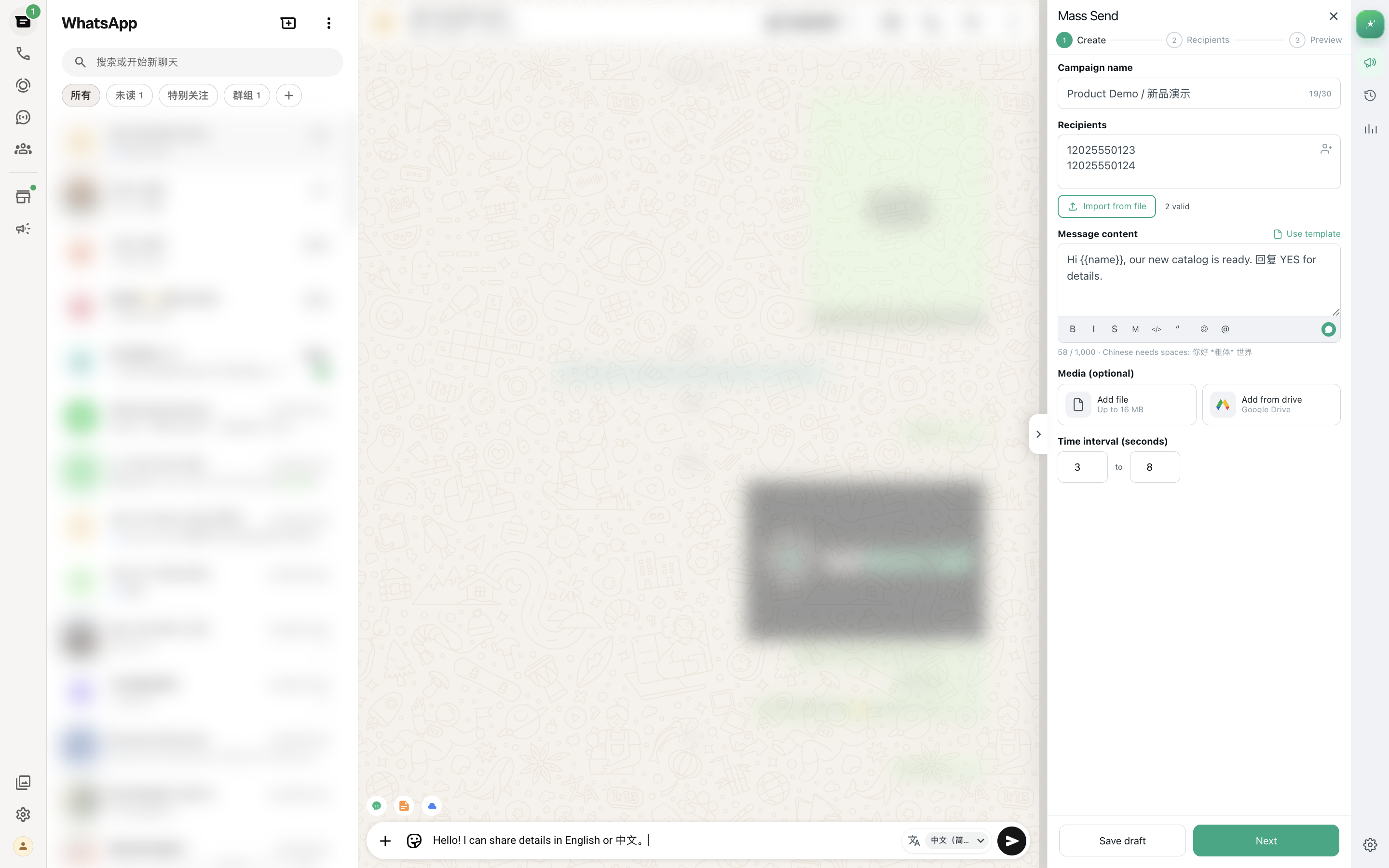
Quick answer
Can WhatsApp Web send images and videos from Google Drive?
Official WhatsApp Web only attaches media from your local computer. MSG.AI adds a Cloud Media Library that connects to your Google Drive: authorize your Drive account, browse folders, search by filename, upload new assets, then pick images or videos to attach when composing a message or building a bulk-send campaign—complete with caption, preview and paced delivery.
This workflow is designed for sellers and support teams who keep product catalogs, SKU photos, tutorial videos or customer-service assets centralized on Drive and need quick access inside WhatsApp Web without downloading files locally first.
Use MSG.AI Cloud Media Library when your team manages hundreds of product images or videos on Google Drive and needs to send them in WhatsApp conversations or bulk campaigns without reorganizing files into local folders every day.
Business context
Why sellers keep WhatsApp media assets on Google Drive
Cross-border e-commerce sellers, agents and multilingual support teams often maintain centralized product catalogs, SKU images, unboxing videos, sizing charts and tutorial clips on Google Drive because the team needs shared access, version control and remote editing. But WhatsApp Web's native file attachment only browses the local Downloads folder.
The usual workaround—download from Drive, attach to WhatsApp, delete local copy—is tolerable for one or two messages but breaks down when you send 50 product intros per day, switch between devices, or prepare bulk campaigns with different SKU images per recipient.
Common media-library use cases
- Product catalog sharing – Sellers maintain SKU folders on Drive; pick images by product code without local download
- Tutorial and demo videos – Support teams store how-to clips, share them by customer question
- Campaign assets – Marketing preps seasonal banners or promo videos on Drive, reuses them in bulk WhatsApp sends
- Remote team collaboration – Multiple agents access the same Drive library, upload new images, keep assets synced
- Multi-device workflow – Same Drive library available whether you work from home PC, office laptop or backup device
MSG.AI Cloud Media Library bridges the gap: your team organizes assets on Drive once, then browses, searches and sends them inside WhatsApp Web whenever needed.
Method comparison
Official WhatsApp Web attach vs MSG.AI Drive library vs Business Platform
There are three main ways to send media on WhatsApp: native Web attach, a Drive-connected extension like MSG.AI, or the official WhatsApp Business Platform with hosted media URLs. Here is how they compare for product-catalog workflows.
| Method | Source location | Best for | Bulk send support | Limitations |
|---|---|---|---|---|
| WhatsApp Web native attach | Local computer files only | Ad-hoc personal messages with nearby files | Manual one-by-one | No Drive access; must download files first |
| MSG.AI Drive library | Google Drive folders | Teams with centralized catalogs, bulk campaigns | Yes—attach media to bulk tasks with captions | Requires Google authorization; file size/format per WhatsApp Web rules |
| Business Platform hosted media | Pre-uploaded URLs via API | High-volume, API-driven, templated campaigns | Yes—via official API with approved templates | Template approval required; higher technical barrier |
For daily seller and support workflows that stay inside WhatsApp Web, MSG.AI Drive library removes the download-attach-delete cycle without requiring API integration.
Folder hygiene
Prepare your Google Drive folders for WhatsApp media
Before connecting MSG.AI to Drive, organize your media assets so you can browse and search them efficiently inside WhatsApp Web. Follow these folder-hygiene practices:
- Use descriptive filenames: SKU codes, product names, version dates (e.g.,
CH-8421-office-chair-blue.jpg) - Separate folders by product line, campaign or language for faster browsing
- Keep images under 16 MB and videos under 64 MB to match WhatsApp Web send limits
- Use standard formats: JPEG/PNG for images, MP4 for videos (avoid HEIC or WebP if recipient devices may not support them)
- Remove outdated, duplicate or test files before bulk-send tasks
- Set Drive sharing to "Only people with access" when media contains unpublished products or customer data
Authorization and permissions
MSG.AI requests Google Drive read and write permissions during the first connection. The extension can browse files you own or that are shared with your Google account. It does not access files outside your Drive or modify content without explicit upload/delete actions you initiate.
Use a Google account you control. If your organization has Drive security policies, confirm that third-party app connections are allowed before authorizing MSG.AI.
Step by step
How to send WhatsApp images and videos from Google Drive with MSG.AI
-
01
Open WhatsApp Web with MSG.AI installed
Sign in to WhatsApp Web normally, then open the MSG.AI panel and navigate to the Cloud Media Library section.
-
02
Authorize Google Drive access
Click "Connect Drive" and complete the Google OAuth flow. MSG.AI stores the authorization token securely in your browser extension storage.
-
03
Browse or search your Drive folders
Navigate folders by clicking or search by filename keyword. Thumbnail previews load for images; video files show duration and size.
-
04
Upload new media if needed
Use the Upload button to add images or videos directly from your computer into a selected Drive folder without leaving WhatsApp Web.
-
05
Select media and add caption
Click an image or video to attach it to the current conversation. Type a caption in the composer, then send normally or add to a bulk-send task.
-
06
Preview before send
WhatsApp Web shows the attached media preview. Confirm the correct file, recipient and caption before completing the send action.
Once Drive is connected, the media library stays available across browser sessions until you disconnect or revoke Drive permissions in your Google account settings.
Campaigns with media
Run bulk WhatsApp campaigns with Drive images, videos and captions
MSG.AI bulk-send tasks support attaching one image or video per campaign, with optional caption personalization using {{variables}} from your recipient spreadsheet. This workflow combines the Excel personalization guide with Drive media selection.
Bulk + media workflow
- Prepare recipient list in Excel/CSV with phone numbers and any caption variables (name, product, order ID)
- Create bulk-send task in MSG.AI, import spreadsheet, map columns
- Write message template with {{placeholders}} for personalization
- Open Cloud Media Library, pick one image or video from Drive
- Type caption template—"Hi {{name}}, here's your {{product}} photo"
- Preview merged messages and media attachment for sample rows
- Set paced delays (random intervals between sends), then start task
Each recipient receives the same media file with a personalized caption. If you need to send different images per recipient, run separate bulk tasks grouped by product SKU or use the script library with manual selection.
Caption and media tips
- Keep captions concise—under 200 characters works best for quick mobile reading
- Test media file on a personal chat first to confirm format compatibility
- Avoid identical caption + media combinations sent to many recipients within minutes—vary wording or spacing
- Store reusable campaign media in labeled Drive folders (e.g.,
/campaigns/2026-09-promo/)
Responsible sending
Consent, pacing and WhatsApp spam detection with media messages
Sending media does not bypass WhatsApp's automated-behavior detection. Images and videos can make messages more engaging, but they also increase the risk of being flagged as spam if recipients did not expect your contact or report your message as unwanted.
Safety checklist for WhatsApp media campaigns
- Consent first – Only send media to people who opted in to receive product updates, order confirmations or requested information
- Relevant content – Match media to what the recipient asked for (e.g., product photo after they inquired about SKU specs)
- Paced delivery – Use MSG.AI random delays (e.g., 10–30 seconds between sends) to mimic human timing
- Avoid identical spam – Don't send the exact same image + caption to 100+ recipients in rapid succession
- File size and format – Stay within WhatsApp Web limits (images ≤16 MB, videos ≤64 MB); test formats on different devices
- Monitor feedback – If recipients reply "Stop" or don't engage, remove them from future campaigns
MSG.AI pacing controls reduce robotic send patterns, but they cannot guarantee your account will never be restricted. Responsible targeting, relevant content and genuine consent are the foundation of safe WhatsApp outreach.
File size and format limits
WhatsApp Web enforces these approximate limits (subject to change):
- Images: 16 MB maximum; JPEG and PNG are safest; avoid HEIC or proprietary formats
- Videos: 64 MB maximum; MP4 (H.264) works across most devices; avoid high-resolution 4K if recipients use older phones
- Documents: PDFs and other files follow different attachment rules; consider sending links to large catalogs instead
If a file exceeds limits, compress it before uploading to Drive, or split videos into shorter clips.
When to upgrade
Should you use the WhatsApp Business Platform instead?
MSG.AI Cloud Media Library suits small-to-medium teams sending up to a few hundred personalized messages per day inside WhatsApp Web. If your volume, compliance needs or technical resources justify official API integration, consider the WhatsApp Business Platform.
Business Platform advantages for media workflows
- Host media URLs on your server; send via API without per-message upload
- Use approved message templates for transactional and marketing campaigns
- Integrate with CRM, order management or helpdesk systems server-side
- Multi-agent routing, real-time webhooks, analytics dashboards
- Official Meta support and higher daily message limits
When MSG.AI Drive library is enough
- Your team sends under 500 messages/day and stays inside WhatsApp Web
- You need quick product-photo sharing without building API infrastructure
- Media assets already live on Google Drive; no plan to move them
- Budget or technical resources don't support Business Platform onboarding
Many teams start with MSG.AI for daily operations and later adopt Business Platform when sustained volume, automation or compliance requirements justify the investment.
Frequently asked questions
FAQ
Can WhatsApp Web attach files from Google Drive natively?
No. Official WhatsApp Web only attaches files from your local computer. MSG.AI adds a Cloud Media Library feature that connects to your Google Drive so you can browse and send Drive files inside WhatsApp Web.
Do I need to download Drive files to my computer first?
No. MSG.AI fetches the file from Drive and attaches it to the WhatsApp message directly, skipping the download-attach-delete cycle.
How large can images and videos be?
WhatsApp Web enforces approximate limits: images ≤16 MB, videos ≤64 MB. Compress files in Drive if they exceed these sizes.
Can I send different images to each recipient in a bulk campaign?
MSG.AI bulk tasks attach one media file per task. To send different images, create separate tasks grouped by SKU or product, or use the script library with manual selection.
Will sending media prevent my WhatsApp account from being banned?
No. Media messages are subject to the same spam and automated-behavior detection as text. Only send to opted-in recipients with relevant content, and use paced delays.
Can my team share the same Drive media library?
Yes. If multiple team members connect MSG.AI to the same shared Drive folder (via their own Google accounts with folder access), they can all browse and send the same assets.
What happens if I revoke Drive permissions?
MSG.AI will no longer be able to browse or upload files. Reconnect Drive in the extension settings to restore access.
Does MSG.AI store my Drive files or images?
No. MSG.AI only stores the Google OAuth token in your browser extension storage to authorize Drive API calls. Media files stay on your Drive; MSG.AI fetches them on demand.
Product workflow checked September 15, 2026. Google Drive integration requires authorization and is subject to Drive API availability. WhatsApp Web media limits and formats may change. MSG.AI is independently developed and is not affiliated with or endorsed by WhatsApp, Meta or Google.