Paced bulk send on WhatsApp Web
WhatsApp Bulk Message Sender Extension | MSG.AI
Install MSG.AI to send paced WhatsApp bulk messages from WhatsApp Web. Chrome mass-sender with consent-first queues, delays you control, and no fake “no-ban” promises.
Quick answer
How to choose a WhatsApp bulk message sender Chrome extension?
A WhatsApp bulk message sender Chrome extension adds a queue to WhatsApp Web so you can send messages to many numbers without saving each one as a contact, typically from an uploaded CSV or Excel list. According to Extension Ranker, the keyword cluster "Whatsapp Bulk Message Sender" attracts ~18,000 monthly searches globally (updated 2026-07-20), reflecting strong commercial demand and a dense competitive SERP on Chrome Web Store.
Before you install one, decide: Do you need bulk send (one-to-many custom messages), Broadcast Lists (one template to saved contacts), or Business Platform API (team inbox + CRM webhooks)? Most small teams start with a bulk sender extension because it requires no Meta verification, works inside existing WhatsApp Web, and costs less than API providers. However, extensions cannot bypass WhatsApp's usage policies—pacing, list quality, and consent are still your responsibility.
Paced delays (20–60 seconds between sends to mimic human behavior), CSV import with personalization variables, and local-first storage (your list does not upload to vendor servers). Extensions promising "1000 messages per hour" or "guaranteed no ban" are red flags.
Target audience
Who needs a WhatsApp bulk message sender Chrome extension?
Bulk message sender extensions are designed for solo entrepreneurs, small sales teams (1–5 people), and customer service reps who need to message 50–500 contacts per campaign without manual one-by-one typing. Common use cases include:
- Cross-border ecommerce: Product launches, restocks, seasonal promotions to international buyer lists—often requiring translation.
- Local service businesses: Appointment reminders, event invitations, follow-ups to leads from Facebook or Instagram ads.
- B2B outreach: Cold outreach to prospect lists, partnership proposals, webinar invitations (only with prior opt-in or legitimate business interest in compliance markets).
- Customer support: Proactive updates (order shipped, policy change) to existing customer lists who consented to WhatsApp communication.
You do NOT need a bulk sender if:
- Your list is under 10 people—manual send is faster.
- Everyone on your list is already a saved contact and you send the exact same message to all—use native Broadcast Lists instead.
- You need a shared team inbox (10+ agents on one number), CRM webhooks, or guaranteed template delivery—upgrade to WhatsApp Business Platform (API).
WhatsApp's Terms of Service require opt-in consent before you message people. No extension, no matter how sophisticated, can make unsolicited bulk messages compliant. Always verify that your list opted in via website signup, checkout consent, or prior conversation—and honor unsubscribe requests immediately.
Three paths compared
WhatsApp bulk sender vs Broadcast Lists vs Business API
The three approaches to messaging multiple people on WhatsApp serve different workflows, team sizes, and compliance requirements. Understanding the trade-offs prevents paying for overkill (API) or hitting limits too soon (Broadcast Lists).
| Feature | Bulk sender extension | Broadcast Lists (native) | Business Platform (API) |
|---|---|---|---|
| Setup | Install extension, sign in to WhatsApp Web (5 minutes) | Built-in WhatsApp feature (Android/iOS), no installation | Meta Business verification, BSP onboarding, template approvals (2–4 weeks) |
| Cost | $0–$50/month (one-time or subscription) | Free | $0.005–$0.10/conversation + $50–$500/month BSP fees |
| Recipient limit | Unlimited recipients (pacing matters) | 256 recipients per list (must be saved contacts) | Unlimited recipients |
| Personalization | Variables from CSV (name, order ID, custom fields) | Same message to all (no variables) | Template variables (approved by Meta) |
| Unsaved contacts | Yes—send without saving | No—all recipients must be in phone contacts | Yes |
| Team collaboration | Solo or 2–3 people sharing one WhatsApp session | Solo only | 10+ agents with shared inbox, roles, and permissions |
| Best for | Small teams, fast iteration, personalized outreach, cross-border sales | Saved contacts, identical announcement to all, no variables needed | Mid-to-large teams, CRM integration, compliance-heavy industries, high-volume support |
Decision rule: Start with native Broadcast Lists if your list is under 256 saved contacts and the message is identical for everyone. Upgrade to a bulk sender extension when you need personalization from Excel, unsaved numbers, or lists over 256. Move to Business API when you need a shared team inbox, CRM webhooks, or guaranteed template delivery at scale.
Before you install
Bulk message sender evaluation checklist
Chrome Web Store has 50+ extensions claiming "bulk send" or "mass sender" capabilities, with wildly varying quality, privacy practices, and feature honesty. Use this checklist to narrow your shortlist before you grant permissions.
1. Pacing and delay configuration
What to look for: Configurable random delay intervals (e.g., 20–60 seconds between sends). The extension should let you adjust pacing based on your list quality and account age.
Why it matters: WhatsApp restricts accounts based on recipient reports, not the tool you use. Sending 500 messages in 10 minutes mimics bot behavior and increases ban risk. Paced sending gives you time to monitor early replies for errors or complaints. See WhatsApp Web bulk message delay guide for recommended intervals.
Red flag: Extensions advertising "send 1000 messages per hour" or "fastest bulk sender" prioritize speed over safety. Your account safety depends on recipient consent and pacing—not marketing claims.
2. CSV/Excel import with personalization
What to look for: Import phone numbers from CSV or Excel with support for custom columns (name, order number, product name, etc.) and variable placeholders in your message template (e.g., "Hi {{name}}, your {{product}} has shipped").
Why it matters: Personalized messages perform better (higher open rates, fewer blocks) than generic blasts. If you are migrating from email marketing or CRM, CSV import with variables is essential. MSG.AI supports personalized WhatsApp messages from Excel with unlimited custom columns.
Bonus: Some extensions (including MSG.AI) integrate with Google Drive media library, so you can attach images, videos, or PDFs from Drive instead of uploading the same file 500 times.
3. Local-first storage vs cloud upload
What to look for: Privacy policy stating that your contact lists, message templates, and chat history stay in browser local storage—not uploaded to vendor servers.
Why it matters: Your customer phone numbers are sensitive data. Extensions that upload your list to their servers for "analytics," "backup," or "team collaboration" introduce data-sharing risks, require GDPR/CCPA compliance audits, and may sell aggregated contact data to third parties. MSG.AI default mode is local-first: task queues and scripts stay in your browser, with optional Google Sign-In for cross-device sync.
How to check: Read the extension's privacy policy. If it mentions "storing your messages on our servers" or "analyzing your conversations for insights," your data leaves your device. If it only mentions "license verification" or "optional Drive upload," content typically stays local.
4. Media attachment support
What to look for: Upload images, videos, PDFs, or documents and attach them to bulk messages—either the same file to all recipients or per-contact custom attachments from a Drive folder.
Why it matters: If your campaigns include product images, invoice PDFs, or promotional videos, manual attachment per message is impractical. MSG.AI supports Google Drive media library so you can organize files in Drive folders and select them for bulk send without re-uploading.
Note: WhatsApp compresses images and videos. If you need full-resolution delivery, send as "document" type rather than "image" or "video."
5. Progress tracking and pause/resume
What to look for: Real-time progress bar showing sent count, success count, fail count, and current contact being processed. Ability to pause the queue mid-campaign (e.g., if you notice a typo or high block rate) and resume later without losing progress.
Why it matters: Bulk send campaigns can take hours with proper pacing. If you cannot pause, you are forced to complete the entire queue even if you spot an error. MSG.AI task queue runs in background service worker with pause/resume and per-task history.
6. Multilingual support and translation
What to look for: If your customers speak multiple languages, look for extensions that integrate automatic translation on WhatsApp Web so you can draft in your language and translate before sending, or reply to incoming messages in their language.
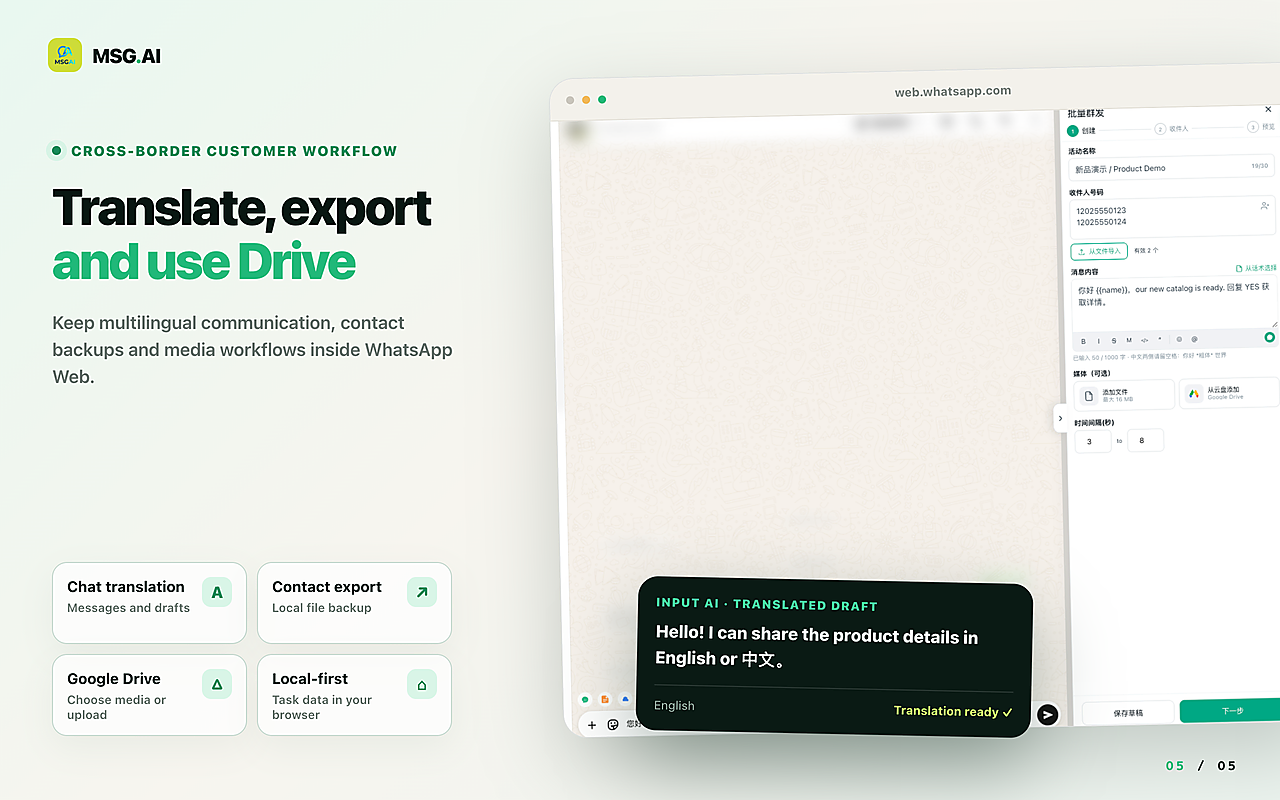
Why it matters: Cross-border sellers often message customers in 5–10 languages. Copy-pasting into Google Translate for each message is slow and error-prone. MSG.AI embeds inline translation (20 languages) with outgoing draft preview before you send.
7. Scripts and quick replies for follow-up
What to look for: Save common replies (shipping status, return policy, payment instructions) in a script library with keyboard shortcuts (e.g., type /shipping → full message).
Why it matters: Bulk send is only the first touchpoint. When recipients reply with questions, you need fast, consistent replies. Extensions that bundle bulk send with scripts reduce tool-switching between bulk campaigns and ongoing support.
What to avoid
Red flags when evaluating WhatsApp bulk sender extensions
The Chrome Web Store bulk sender category includes legitimate tools, abandoned projects, and scam extensions that overpromise or scrape your data. Here are warning signs to reject during your shortlist.
1. "Guaranteed no ban" or "100% safe" claims
Why it's a red flag: WhatsApp restricts accounts based on recipient reports, message content, and usage patterns—not the tool you use. No extension can "guarantee" safety because account restrictions depend on your list quality, consent, and pacing. Vendors making this claim either don't understand WhatsApp's enforcement or are intentionally misleading.
Honest alternative: Extensions should explain pacing, consent, and best practices—not promise immunity. MSG.AI documents recommended delay intervals and consent requirements without ban guarantees.
2. Opaque cloud scraping or "AI contact finder"
Why it's a red flag: Some extensions offer "scrape WhatsApp groups for contacts" or "AI-powered lead generation from WhatsApp." These features violate WhatsApp's Terms of Service (scraping is prohibited) and Meta's privacy policies. Installing such extensions risks account ban and exposes you to legal liability under GDPR or similar data protection laws.
Honest alternative: Build your list via website signups, checkout consent, Facebook/Instagram lead ads, or manual collection from trade shows. Never scrape.
3. No privacy policy or vague data-sharing language
Why it's a red flag: If the extension has no privacy policy, or the policy says "we may share data with partners for analytics and marketing," your customer phone numbers and message content may be sold to third-party data brokers.
How to check: Look for the "Privacy practices" section on Chrome Web Store listing. Extensions collecting data must disclose what is collected, whether it is shared, and whether you can request deletion. MSG.AI privacy policy states local-first storage by default, with optional Google Sign-In for cross-device sync (Google handles auth, MSG.AI does not store your Google credentials).
4. Fake reviews or suspiciously uniform 5-star ratings
Why it's a red flag: Chrome Web Store reviews are public and verifiable. Extensions with 500+ reviews, all 5 stars, all posted within a 2-week window, are likely buying fake reviews. Check review dates, look for detailed feedback (not just "Great!" or "Best extension!"), and sort by "Most recent" to see recent user experience.
Honest alternative: Look for extensions with 100–500 reviews, mix of 4–5 stars, and detailed feedback mentioning specific features. MSG.AI reviews mention pacing, translation, and Drive media—not just generic praise.
5. No recent updates or abandoned maintenance
Why it's a red flag: WhatsApp Web changes its internal module structure every few months. Extensions that haven't updated in 12+ months may break when WhatsApp updates, leaving you with a non-functional tool mid-campaign.
How to check: Chrome Web Store listing shows "Last updated" date. Avoid extensions with no updates in the past 6 months unless they are very simple (e.g., Broadcast List helpers with no WhatsApp Web dependency). MSG.AI updates monthly to track WhatsApp Web changes.
Product overview
What MSG.AI bulk message sender actually does
MSG.AI is a Chrome extension that embeds a paced bulk message queue, AI translation, knowledge-base reply drafts, script library, Drive media, and contact/group/chat export directly into WhatsApp Web—targeting cross-border sellers, ecommerce support teams, and multilingual SMBs.
Core bulk sender features
- Paced queue: Configurable random delays (default 20–60 seconds) with pause/resume, background processing in service worker, and per-task history.
- CSV/Excel import: Upload contact lists with unlimited custom columns, use variables in message templates (e.g., Hi {{name}}, your {{order_id}} has shipped), and attach media per-contact or same file to all.
- Drive media library: Organize images, videos, PDFs in Google Drive folders and select them for bulk send without re-uploading. See Drive media guide.
- Local-first storage: Task queues, scripts, and settings stay in browser local storage by default. Optional Google Sign-In for cross-device sync (syncs settings only, not chat content).
- No unsaved-contact saving: Send to numbers not in your phone contacts. MSG.AI validates numbers via WhatsApp's internal modules before queuing. See send without saving contacts guide.
Beyond bulk send: why bundled features matter
Bulk send is only the first touchpoint. When recipients reply, you need translation (if cross-border), quick replies (for FAQs), and AI drafts (for complex inquiries). MSG.AI bundles these to reduce tool-switching:
- AI translation: Inline incoming translation (20 languages), outgoing draft preview before sending, Live Translate mode for continuous conversations. See translation guide.
- Knowledge-base AI reply drafts: Upload business knowledge (return policy, product specs, shipping zones) and get editable reply suggestions using recent conversation context. You review and edit before sending—not unattended bot. See AI reply guide.
- Script library: Save common replies with folders, keyboard shortcuts (type /shipping → full message), and variable placeholders. See script library guide.
- Contact/group/chat export: Export WhatsApp contacts to CSV/Excel/vCard, group members with admin roles, or full chat history to HTML for archival or handoff. See contact export guide.
Honest limits
MSG.AI is a Chrome extension for WhatsApp Web—not Meta's Business Platform API. It does not support:
- Shared team inbox: One phone number per WhatsApp session. Multiple agents require separate WhatsApp accounts.
- Clock scheduler: No "send at 9 AM tomorrow" feature. You start the queue manually and it runs until complete or paused.
- CRM webhooks: No real-time sync with HubSpot, Salesforce, or Zendesk. Export to CSV and import manually.
- Guaranteed delivery: MSG.AI uses WhatsApp Web's internal messaging functions—the same delivery guarantees as manual typing. If WhatsApp Web has connection issues, sends may fail.
If you need these features, consider upgrading to WhatsApp Business Platform (API) instead of an extension.
Pricing and installation
MSG.AI is available on Chrome Web Store with a freemium model: basic bulk send and scripts are free, translation and AI drafts require a subscription (~$10–$20/month as of 2026). Install the extension, sign in to WhatsApp Web, and configure pacing in settings before your first bulk send.
Step-by-step
Bulk message sender workflow with MSG.AI
Here is a typical bulk send campaign from CSV upload to follow-up replies, using MSG.AI as the example extension.
Step 1: Prepare your contact list (CSV/Excel)
Create a spreadsheet with one row per recipient. Required column: phone number (include country code, e.g., +1 for US, +86 for China, +44 for UK). Optional columns: name, order_id, product, custom_field_1, etc.
Example CSV:
phone,name,order_id,product
+14155551234,Alice,ORD-001,Widget Pro
+8613800138000,小明,ORD-002,小工具套装
+442071234567,Bob,ORD-003,Gadget Plus
Save as CSV UTF-8 (important for Chinese, Arabic, or emoji characters). Do not include spaces in column names (use underscores).
Step 2: Configure pacing and message template
Open MSG.AI in WhatsApp Web, navigate to Bulk Send panel, and set delay intervals. For a new account or untested list, start conservative: 30–60 seconds between sends. For established accounts with high-quality opted-in lists, you can reduce to 20–30 seconds.
Draft your message template using variable placeholders from your CSV columns:
Hi {{name}}, your order {{order_id}} has shipped! Track here: [link]. Reply STOP to unsubscribe.MSG.AI will replace {{name}} and {{order_id}} with values from each row. Always include an unsubscribe instruction.
Step 3: Upload CSV and start queue
Upload your CSV file, preview the first 3 messages to verify variable substitution, and click "Start bulk send." The queue runs in background service worker, so you can switch tabs or minimize the browser—but keep WhatsApp Web tab open and connected.
Monitor progress in real-time: sent count, success count, fail count (invalid numbers or connection errors). If you notice errors or high block rate, pause the queue, review your list, and adjust pacing.
Step 4: Handle replies with translation and scripts
When recipients reply, use MSG.AI's bundled features for fast, consistent responses:
- Translation: If reply is in a language you don't speak, click Translate button to see inline English (or your preferred language). Draft your reply in English, select target language, preview translated text, and send.
- Scripts: For common questions (shipping status, return policy), type keyword shortcut (e.g., /shipping) to insert saved script. Edit if needed and send.
- AI drafts: For complex questions, click AI Reply to generate editable suggestion using recent conversation context and your business knowledge. Review, edit, and send—not unattended.
Step 5: Export and archive
After campaign completion, export bulk send results to CSV (sent/failed per contact) for your CRM or analytics. Export chat history to HTML for compliance archival or team handoff. See chat export guide.
Common questions
Frequently asked questions
Is a WhatsApp bulk message sender Chrome extension legal?
Chrome extensions that add bulk send queues to WhatsApp Web are legal tools—but your use of them must comply with WhatsApp's Terms of Service (opt-in consent required) and local data protection laws (GDPR, CCPA, etc.). Sending unsolicited bulk messages is prohibited and can result in account restrictions. Always send only to contacts who opted in, and honor unsubscribe requests.
Can I send bulk messages without getting banned?
There is no "guaranteed no ban" method because WhatsApp restricts accounts based on recipient reports, message content, and usage patterns—not the tool you use. To minimize risk: (1) send only to opted-in contacts, (2) use paced delays (20–60 seconds), (3) include unsubscribe instructions, (4) monitor early replies for complaints, and (5) never send spam or prohibited content. See bulk message delay guide for recommended pacing.
How many messages can I send per day with a bulk sender extension?
WhatsApp does not publish a hard limit, and limits vary by account age, verification status, and history. Anecdotal reports suggest 200–500 messages per day for established accounts with good-quality lists, but this is not official guidance. Start with 50–100 per day for a new account and gradually increase if you experience no restrictions. Quality (opt-in, relevant content) matters more than quantity.
Can I schedule bulk messages to send at a specific time?
Most bulk sender Chrome extensions (including MSG.AI) do not support clock-based scheduling (e.g., "send at 9 AM tomorrow") because WhatsApp Web must be open and connected for the extension to function. You start the queue manually and it runs until complete. If you need scheduled send, consider using schedule extension for individual messages or upgrade to Business Platform API for bulk scheduled campaigns.
Does MSG.AI work with WhatsApp Business App or only WhatsApp Web?
MSG.AI is a Chrome extension that works with WhatsApp Web only (personal WhatsApp or Business App account signed in via web.whatsapp.com). It does not work with the WhatsApp Business Platform (API). You can use your Business App phone number with WhatsApp Web + MSG.AI, but you lose Business App-specific features like catalogs and quick replies when using the Web interface. See app vs platform vs extension comparison.
Can I use a bulk sender extension for customer support?
Yes, for solo or small-team support (1–5 people) where you message existing customers with proactive updates (order shipped, policy change) or follow-up after initial conversations. Bulk send is the first touchpoint; you handle replies manually using translation, scripts, and AI drafts. If you need a shared team inbox (10+ agents on one number), CRM integration, or automated routing, upgrade to WhatsApp Business Platform instead. See customer service tools guide.
What happens if a bulk message fails to send?
Most bulk sender extensions (including MSG.AI) log failed sends with reason codes (invalid number, connection error, blocked by recipient). You can export the failed list and retry later, or manually review and clean invalid numbers. Common failure reasons: (1) number is not on WhatsApp, (2) you are blocked by recipient, (3) WhatsApp Web lost connection during send. Paced delays and queue pause/resume help you catch errors early before completing the entire list.
Ready to choose your WhatsApp bulk message sender?
Evaluate extensions based on pacing, personalization, local-first storage, and honest product limits—not marketing hype. If you need paced bulk send with AI translation and Drive media for cross-border sales or multilingual support, install MSG.AI from Chrome Web Store and configure pacing before your first campaign.
Related guides: WhatsApp sender extension overview, bulk send without saving contacts, personalized messages from Excel, broadcast vs bulk sender, when to use Business API instead.
Frequently asked questions
FAQ
Is a WhatsApp bulk message sender Chrome extension legal?
Chrome extensions that add bulk send queues to WhatsApp Web are legal tools—but your use of them must comply with WhatsApp's Terms of Service (opt-in consent required) and local data protection laws (GDPR, CCPA, etc.). Sending unsolicited bulk messages is prohibited and can result in account restrictions. Always send only to contacts who opted in, and honor unsubscribe requests.
Can I send bulk messages without getting banned?
There is no "guaranteed no ban" method because WhatsApp restricts accounts based on recipient reports, message content, and usage patterns—not the tool you use. To minimize risk: (1) send only to opted-in contacts, (2) use paced delays (20–60 seconds), (3) include unsubscribe instructions, (4) monitor early replies for complaints, and (5) never send spam or prohibited content.
How many messages can I send per day with a bulk sender extension?
WhatsApp does not publish a hard limit, and limits vary by account age, verification status, and history. Anecdotal reports suggest 200–500 messages per day for established accounts with good-quality lists, but this is not official guidance. Start with 50–100 per day for a new account and gradually increase if you experience no restrictions. Quality (opt-in, relevant content) matters more than quantity.
Can I schedule bulk messages to send at a specific time?
Most bulk sender Chrome extensions (including MSG.AI) do not support clock-based scheduling (e.g., "send at 9 AM tomorrow") because WhatsApp Web must be open and connected for the extension to function. You start the queue manually and it runs until complete. If you need scheduled send, consider using schedule extension for individual messages or upgrade to Business Platform API for bulk scheduled campaigns.
Does MSG.AI work with WhatsApp Business App or only WhatsApp Web?
MSG.AI is a Chrome extension that works with WhatsApp Web only (personal WhatsApp or Business App account signed in via web.whatsapp.com). It does not work with the WhatsApp Business Platform (API). You can use your Business App phone number with WhatsApp Web + MSG.AI, but you lose Business App-specific features like catalogs and quick replies when using the Web interface.
Can I use a bulk sender extension for customer support?
Yes, for solo or small-team support (1–5 people) where you message existing customers with proactive updates (order shipped, policy change) or follow-up after initial conversations. Bulk send is the first touchpoint; you handle replies manually using translation, scripts, and AI drafts. If you need a shared team inbox (10+ agents on one number), CRM integration, or automated routing, upgrade to WhatsApp Business Platform instead.
What happens if a bulk message fails to send?
Most bulk sender extensions (including MSG.AI) log failed sends with reason codes (invalid number, connection error, blocked by recipient). You can export the failed list and retry later, or manually review and clean invalid numbers. Common failure reasons: (1) number is not on WhatsApp, (2) you are blocked by recipient, (3) WhatsApp Web lost connection during send. Paced delays and queue pause/resume help you catch errors early before completing the entire list.
Last checked September 30, 2026. Platform interfaces, policies, coverage and pricing can change. Follow the linked official sources before submitting an application or purchasing data.