WhatsApp Web bulk sender
Send Bulk WhatsApp Messages Without Saving Contacts
Install MSG.AI to send personalized bulk WhatsApp messages from WhatsApp Web without saving each number. Chrome extension with CSV import, recipient review, and consent checks.
The short version
Yes—you can message a list without saving each number as a contact
On WhatsApp Web, a browser extension can take a list of full international phone numbers, check the entries, and create a controlled send queue. With MSG.AI, you can paste one number per line or import an Excel/CSV file, write one message, optionally personalize it with a name column, review the recipient list, run a test send, and then start the queue.
You do not need to create an address-book entry for every recipient. You still need a valid WhatsApp number, a legitimate reason to contact that person, and permission where required.
Pre-flight check
Before you start: permission matters more than the tool
Bulk messaging is appropriate for expected communication such as opted-in product updates, event reminders, order notifications, support follow-ups, or messages to an existing customer list. It is not a shortcut for unsolicited cold outreach.
Do not treat a delay setting as a guarantee against restrictions
WhatsApp prohibits spam and harmful bulk or automated behavior. Its Business Messaging Policy says businesses should contact people only after receiving their number and opt-in permission, and must honor opt-out requests. Read the WhatsApp Messaging Guidelines and Business Messaging Policy before running a campaign.
Use a desktop browser that supports Chrome extensions.
Keep the WhatsApp Web tab open while the queue is running.
Use a list with a documented relationship or messaging consent.
Include the country code and remove the domestic trunk prefix.
Prepare the data
Format phone numbers in international form
Start with a clean list. Each phone number should include the country calling code and contain digits only. Do not include a leading plus sign, spaces, parentheses, or hyphens in the final import file. MSG.AI normalizes common formatting, but a clean source file makes errors easier to spot.
| Input | Use? | Reason |
|---|---|---|
12025550123 | Yes | Country code + number, digits only |
+1 202-555-0123 | Clean first | Remove punctuation and spaces |
020 7946 0123 | No | Domestic format; country code is missing |
442079460123 | Yes | UK example in full international form |
The numbers above are reserved-style examples for documentation. Replace them with your permitted recipient list.
Option A: paste one number per line
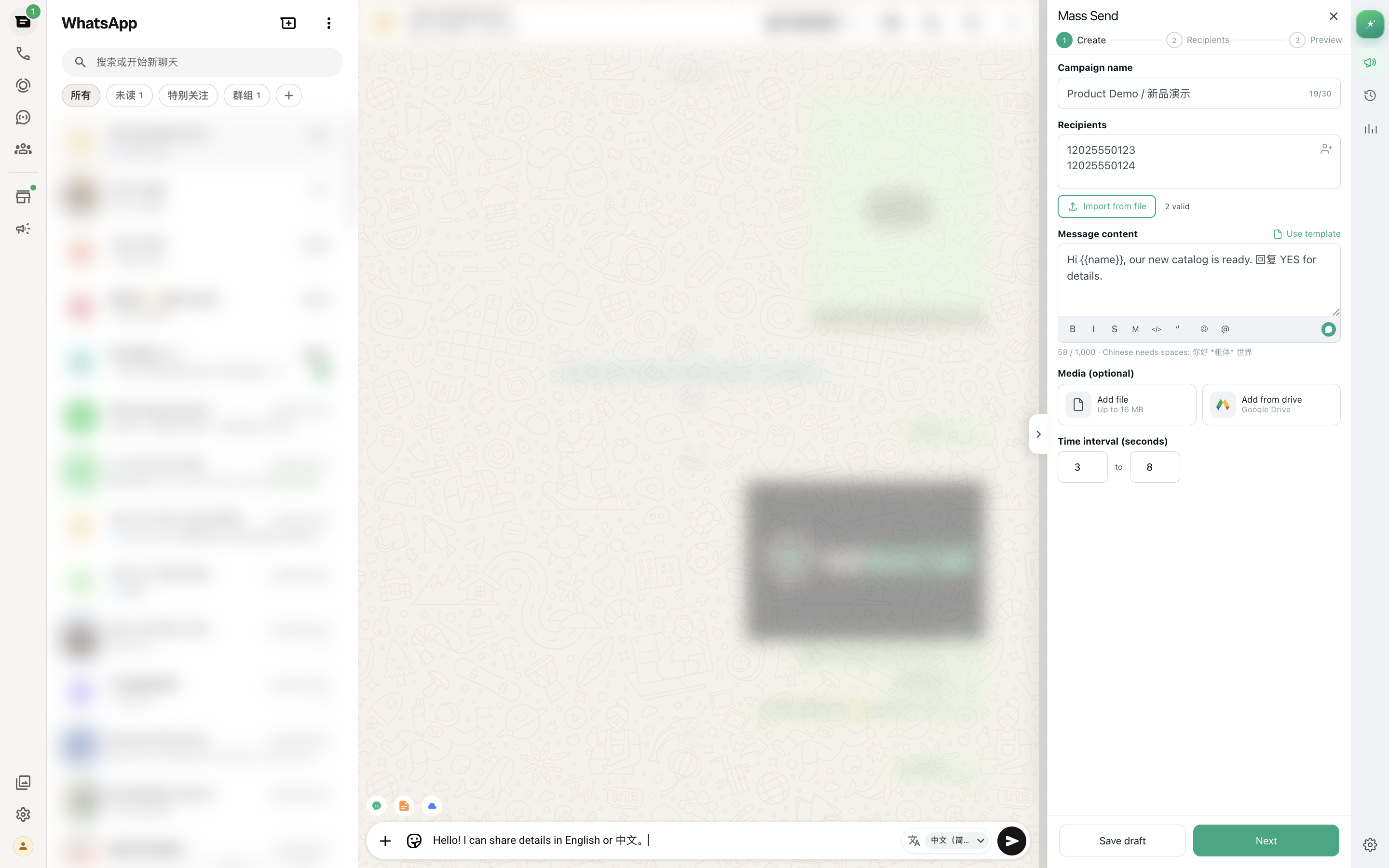
For a short list, paste numbers directly into the Recipients field. Keep one number on each line. The interface shows the number of valid, unique recipients before you continue.
12025550123
12025550124
442079460123
Option B: import an Excel or CSV file
For a larger list, create a file with a header row. MSG.AI recognizes common phone headers such as phone, mobile, number, tel, or whatsapp. It also recognizes name headers such as name, contact, or customer.
phone,name
12025550123,Avery
12025550124,Jordan
442079460123,SamFormat the phone column as text before importing. Spreadsheet software can otherwise display long numbers in scientific notation or remove meaningful digits.
Create
Open MSG.AI and build the campaign
- 1Install MSG.AI from the Chrome Web Store.
- 2Open WhatsApp Web and finish signing in.
- 3Open the MSG.AI side panel and choose Mass Send.
- 4Enter a clear internal campaign name, such as August order status update.
- 5Paste the numbers or select Import from file and choose an XLSX, XLS, or CSV file.
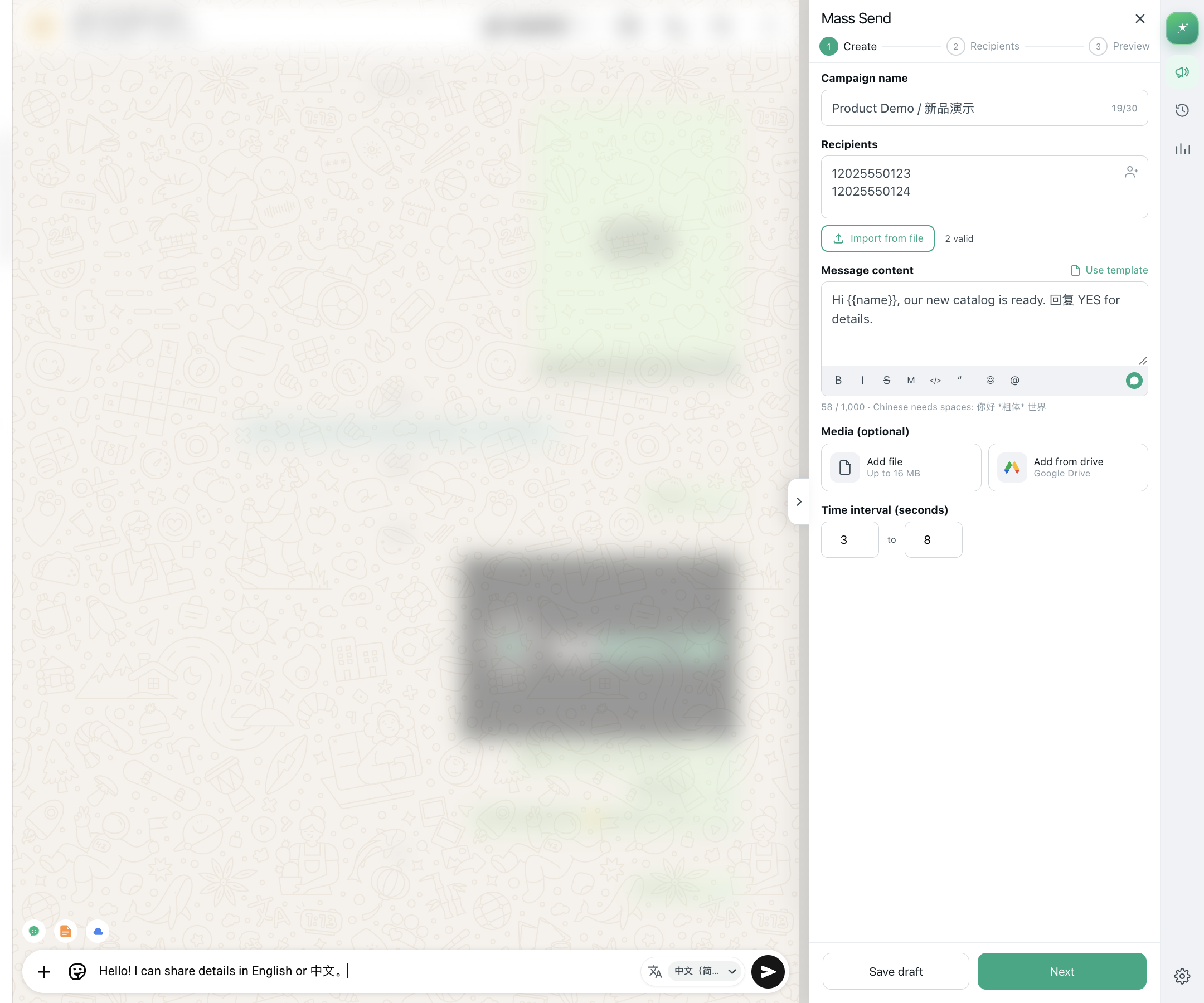
After import, check the valid-recipient count shown beside the import button. Duplicate numbers are consolidated, so the count may be lower than the number of spreadsheet rows. If the count is unexpectedly low, return to the file and check country codes, column headers, and number length.
Compose
Write a message people will recognize and expect
A good operational message identifies the sender, explains why the recipient is receiving it, gives one clear next action, and offers a simple way to stop future messages. Avoid vague greetings, misleading urgency, repeated promotional copy, or shortened links that hide the destination.
Personalize with {{name}}
If the imported file contains recognized phone and name columns, insert {{name}} in the message. MSG.AI replaces it for each named recipient when the message is prepared. If your list does not contain names, write a message that reads naturally without a personal greeting.
Add media only when it helps
You can attach a supported image or video from your computer, or choose media from Google Drive. Keep the file relevant, verify that you have the right to send it, and use a concise caption. The extension accepts media up to 16 MB.
Choose a conservative interval
The interval controls the pause between queued messages. Use it to keep the queue manageable and to leave time to monitor replies. It does not turn unsolicited messaging into permitted messaging and cannot guarantee that an account will avoid restrictions.
Recipients
Review the exact destination list
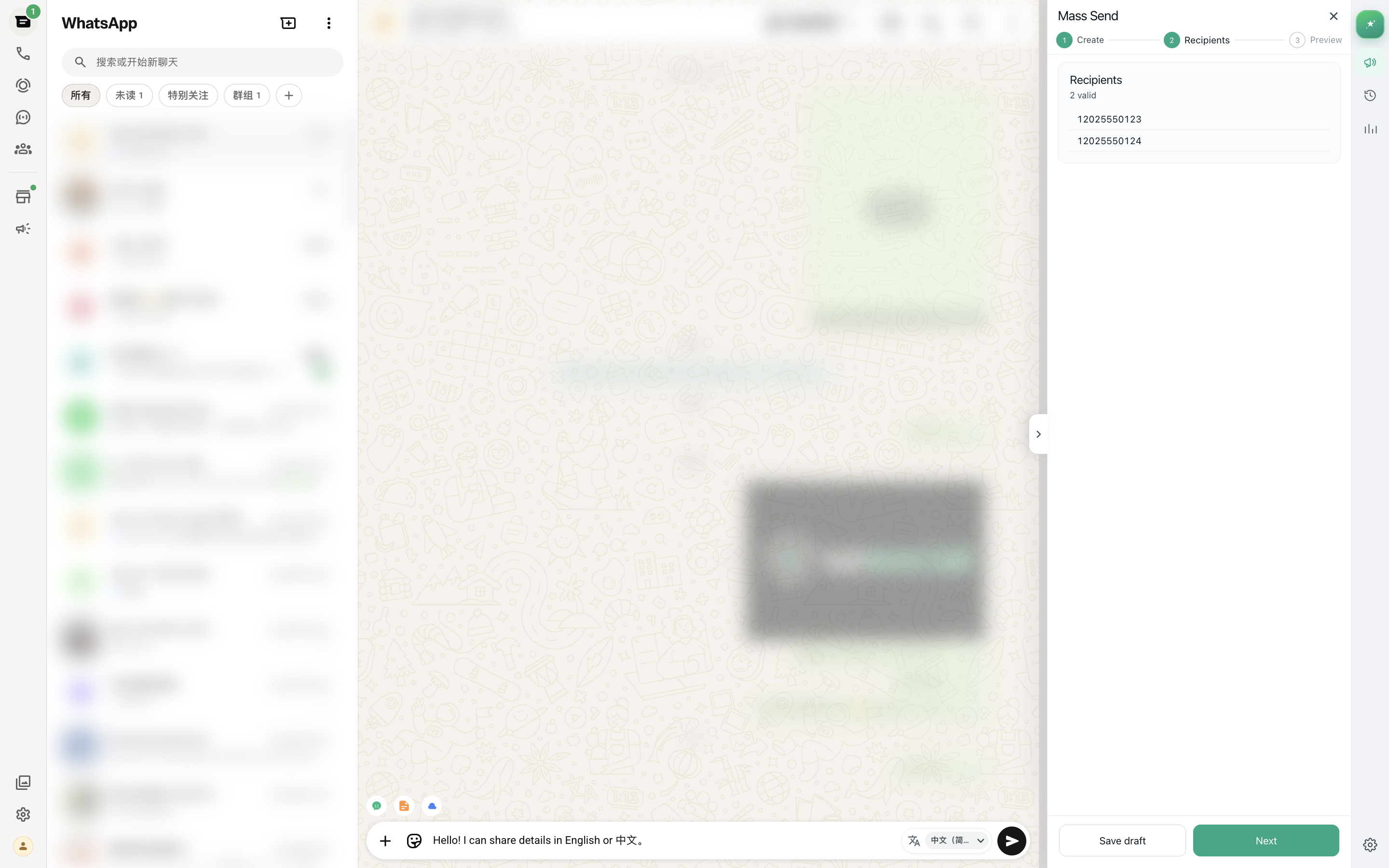
Select Next to open the Recipients step. This is the point to stop and inspect the final list—not merely the source spreadsheet. Check the country code, the number of recipients, and any unfamiliar entries.
Recipient review checklist
Preview
Run a test, then start with a small batch
The Preview step shows the campaign name, recipient count, interval, and rendered message. Read the message as a recipient would. Check placeholder replacement, link destination, spelling, formatting markers, media, and opt-out wording.
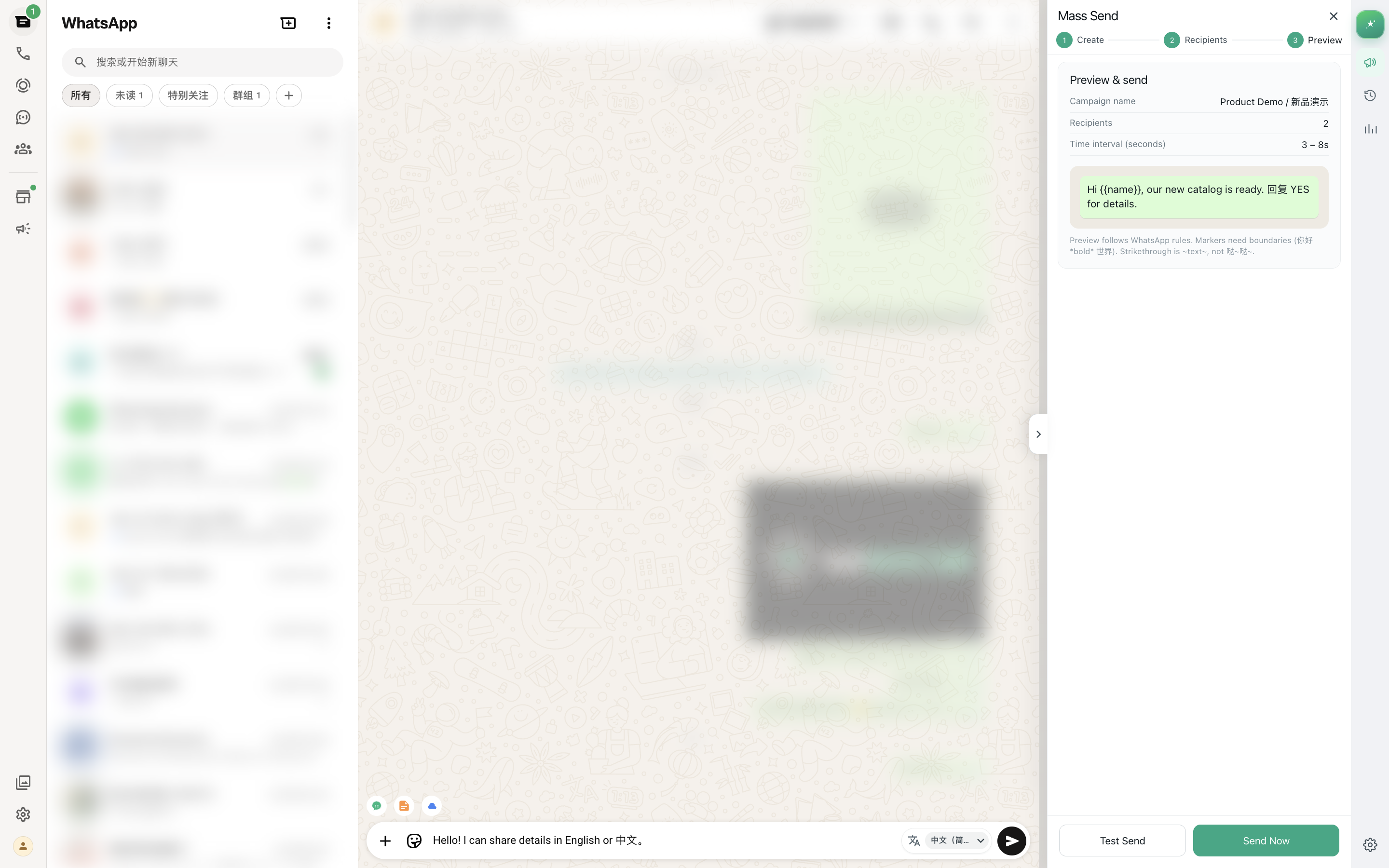
- 1Select Test Send and send the message to a number you control.
- 2Check how the text, link, name, image, or video appears on a phone.
- 3For a first campaign, use a small segment rather than the entire list.
- 4Select Send Now, keep WhatsApp Web open, and watch success/failure status.
- 5Pause the task if failures increase, replies indicate confusion, or recipients request removal.
Campaign tasks and related send history are stored in the browser. MSG.AI does not upload your chat content to its messaging servers. Google Drive access is optional and used only when you choose Drive media or export features.
Troubleshooting
Common problems and what to check
The file imports fewer numbers than expected
Confirm that the first row contains a recognizable phone header, the phone cells contain 8–15 digits, and the country code is present. Remove spreadsheet formulas and scientific notation, then save the file again.
A name is not inserted into the message
Use a clear name or customer column next to the phone column, and type the placeholder exactly as {{name}}. Manually pasted numbers do not carry names.
A number fails during sending
The number may be invalid, not registered on WhatsApp, incorrectly formatted, or temporarily unreachable. Review the per-number result in task history before deciding whether to retry.
The queue stops when the browser is closed
Keep Chrome and the signed-in WhatsApp Web tab open while sending. A browser-side queue cannot continue after its active WhatsApp Web session is closed.
Recipients report the message as unexpected
Pause immediately. Recheck the source and scope of consent, remove anyone who opts out, and rewrite the message so it clearly identifies the sender and why the recipient is receiving it.
Frequently asked questions
Sending without saving contacts: FAQ
Do recipients need to save my number?
No. A recipient does not need to save your number for you to send a direct message, but they should expect the communication and have provided any required permission. Unsaved senders may also receive less trust, so clearly identify your business.
Can I import names from Excel or CSV?
Yes. Use a phone column and a name column with clear headers. Insert {{name}} in the message to personalize rows that contain a name.
Does MSG.AI require the WhatsApp Business API?
No. MSG.AI works with your active WhatsApp Web session in Chrome. It is not the official WhatsApp Business Platform and should not be used as a substitute when you require approved templates, API-scale messaging, or enterprise compliance controls.
Will random delays prevent an account restriction?
No tool can guarantee that. Delays can pace a queue, but restrictions are driven by several factors, including recipient expectations, complaints, message quality, account behavior, and WhatsApp policies.
Can I send images and videos?
Yes. You can add supported images or videos from your computer or Google Drive, with a current per-file limit of 16 MB.
Where are campaign data and send history stored?
They are stored locally in Chrome. Optional services such as licensing, AI features, or Google Drive have separate, disclosed data flows described in the MSG.AI privacy policy.
Ready for a controlled test?
Start with two numbers you own
Install MSG.AI, create a tiny test file, and validate the complete workflow before using an opted-in customer segment.