Personalization workflow
How to Send Personalized WhatsApp Messages from Excel on WhatsApp Web (2026)
Sending the same message to 100 customers is easy. Personalizing each one with their name, order number, or product preference requires a merge-tag system. Here is how to map Excel columns to WhatsApp variables and send paced, personalized messages without manual copy-paste.
Quick answer
How do I send personalized WhatsApp messages from Excel?
Prepare an Excel or CSV file with one row per recipient: a phone number column and additional columns for any personalization fields (name, order ID, product, language, etc.). Open WhatsApp Web with MSG.AI, import the spreadsheet, map each column to a {{variable}} placeholder in your message template, preview the merged messages, then send with randomized delays between each delivery.
This approach keeps the personal touch—"Hi Sarah, your chair order #8421 shipped today"—without manual copy-paste for every contact.
Use spreadsheet personalization when you have structured customer data (CRM export, order list, support tickets) and want each recipient to see their own name, reference number, or relevant details in a WhatsApp message.
Business context
Why personalization matters for sellers and support teams
Generic bulk messages—"Dear customer, your order shipped"—work for announcements, but they fail when customers expect you to know who they are. Cross-border e-commerce sellers juggle orders in multiple languages with different SKUs. Support teams reply to tickets with unique case IDs. A personalized message proves you read the record.
Compare these two shipment notifications:
Generic
"Hello! Your order has been shipped. Track your package online."
Personalized
"Hi Maria, your office chair (SKU CH-8421) shipped via DHL. Track: dhl.com/ABC123XYZ"
The second message is faster to understand, builds trust, and reduces follow-up questions. Personalization is not about sounding friendly; it is about delivering the right context so the recipient can act immediately.
Common personalization use cases
- Order updates – Insert customer name, SKU, order number, tracking code
- Support follow-ups – Reference ticket ID, issue summary, next steps
- Restock alerts – Mention product name, price, availability date
- Multilingual outreach – Greet in the recipient's language, tailor product recommendations
- Event invitations – Include recipient name, event date, personalized discount code
All of these require matching a data field to a message placeholder. That is what merge tags do.
Method comparison
Three ways to send personalized WhatsApp messages from a spreadsheet
You can combine Excel data with WhatsApp messages in three ways: manual hyperlinks, a Web-based merge tool like MSG.AI, or the official WhatsApp Business Platform with pre-approved templates. Here is how they compare.
| Method | Setup complexity | Personalization scope | Sending workflow | Best for |
|---|---|---|---|---|
| Excel HYPERLINK + wa.me | Low – formula only | Limited – URL encoding issues with special characters | Click each link manually; no queue | One-off sends to < 10 contacts |
| MSG.AI Web merge | Low – import CSV, map columns | Unlimited custom fields; preview before send | Automated queue with random delays; review drafts | Recurring campaigns 10–500 contacts; editable templates |
| WhatsApp Business Platform API | High – requires Meta Business verification, webhook server | Pre-approved template variables only; rigid structure | API-triggered; instant delivery at scale | Enterprise transactional messaging > 500/day; strict compliance needs |
The Excel HYPERLINK method generates clickable wa.me URLs with a pre-filled message. It works for a handful of sends but does not support complex templates or pacing. The Business Platform API is the most powerful but requires formal approval, developer integration, and a verified Business Manager account. MSG.AI sits in between: you control the template wording, preview every message, and send from WhatsApp Web without API credentials.
Data hygiene
Spreadsheet prep checklist before you import
A clean spreadsheet prevents merge errors and failed sends. Follow these steps before importing into MSG.AI:
- Use international phone format – Include country code without +, spaces, or parentheses. Example:
14155552671not(415) 555-2671. Most CRM exports already match this format. - Add clear column headers – Name columns
phone,name,orderId,sku, etc. MSG.AI maps these headers to {{variables}} in your message template. - Save as UTF-8 CSV – Excel's default CSV encoding may corrupt non-Latin characters. In Excel, choose File → Save As → CSV UTF-8. In Google Sheets, File → Download → Comma Separated Values already uses UTF-8.
- Fill blank cells with fallback text – If a customer has no name on file, write "Valued Customer" instead of leaving the cell empty. Blank merge fields look unprofessional: "Hi , your order shipped" instead of "Hi John, your order shipped."
- Remove duplicate phone numbers – Sending the same message twice annoys recipients and wastes API quota if you later scale to the Business Platform. Use Excel's Data → Remove Duplicates or filter by phone column and delete copies.
- Verify consent or existing relationship – WhatsApp's Terms prohibit unsolicited messages. Only include recipients who expect your communication: past customers, support ticket holders, or users who opted in to updates.
Once your spreadsheet passes this checklist, export it as CSV and move to the import step.
Example spreadsheet structure
| phone | name | orderId | sku | trackingCode |
|---|---|---|---|---|
| 14155551001 | Maria Chen | 8421 | CH-8421 | ABC123XYZ |
| 442071234567 | John Smith | 8422 | DK-9012 | DEF456UVW |
| 5511987654321 | Ana Silva | 8423 | TB-3045 | GHI789RST |
Each row becomes one personalized WhatsApp message. The phone column identifies the recipient; the other columns populate your template's {{name}}, {{orderId}}, {{sku}}, and {{trackingCode}} variables.
Step-by-step
How to send personalized messages from Excel with MSG.AI
This workflow takes about 10 minutes the first time. Once you save the template, future campaigns only require importing a new CSV and clicking send.
Step 1: Install MSG.AI and open WhatsApp Web
Install the MSG.AI Chrome extension (free tier available) and visit web.whatsapp.com. Scan the QR code with your phone to log in. MSG.AI adds a panel to the left sidebar.
Step 2: Import your CSV file
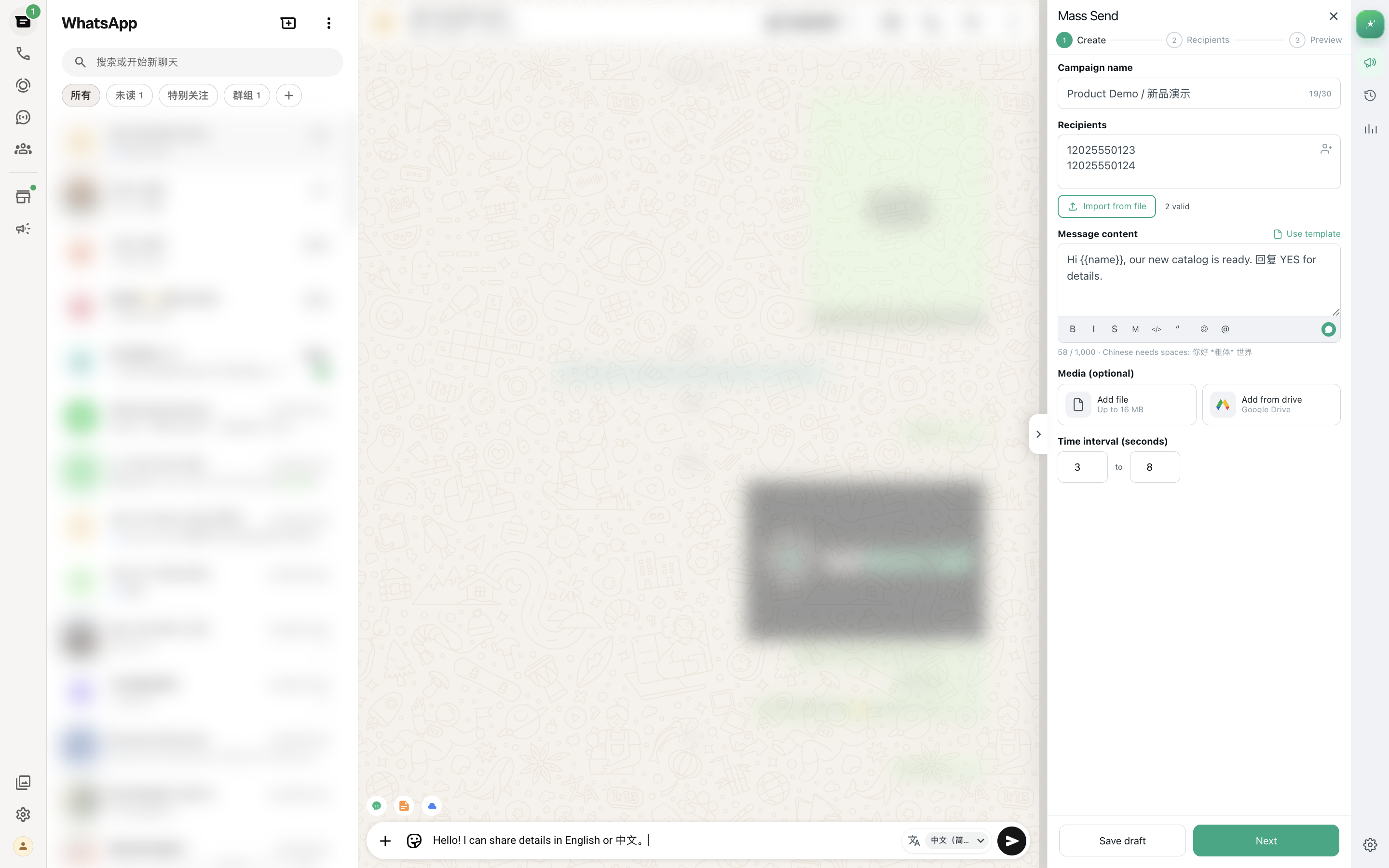
Click MSG.AI → Mass Send in the sidebar. Under Import Recipients, choose Upload CSV and select your prepared file. MSG.AI reads the headers and displays a preview of the first few rows.
If the phone column is named something other than "phone" (e.g., "mobile", "whatsapp"), MSG.AI will ask you to select the correct column. Confirm the phone format matches international standards (country code + number, no symbols).
Step 3: Map columns to message variables
Scroll to the Message Template section. Write your message with {{variable}} placeholders matching your CSV headers. For example:
Hi {{name}},

Your order #{{orderId}} ({{sku}}) has been shipped via DHL.

Track your package: dhl.com/{{trackingCode}}

Thank you for your business!
MSG.AI highlights each {{variable}} in the editor. Make sure the spelling matches your CSV headers exactly: {{name}} will not find a column named "customer_name".
Step 4: Preview merged messages
Click Preview. MSG.AI shows how the first 5 messages will look after merging:
- Row 1: "Hi Maria Chen, Your order #8421 (CH-8421) has been shipped..."
- Row 2: "Hi John Smith, Your order #8422 (DK-9012) has been shipped..."
Check for blank fields, formatting issues, or incorrect variable mappings. If a {{variable}} does not match any column, MSG.AI leaves it as literal text: "Hi {{customer}}" instead of "Hi Maria".
Step 5: Set pacing delays
Under Send Settings, configure the delay range between each message. The default is 5–10 seconds. For larger lists (100+), increase to 10–20 seconds to mimic human pacing.
Pacing helps avoid WhatsApp's automated-behavior detection. It does not guarantee your account will never be restricted—only WhatsApp's algorithm decides that—but sending one message every 7–15 seconds looks more natural than 100 messages in 30 seconds.
Step 6: Review and send
Click Start Sending. MSG.AI opens each recipient's chat window in WhatsApp Web, pastes the personalized message into the composer, and sends it after the configured delay. You can pause the queue at any time, edit the next message manually, or skip a recipient.
A progress counter shows Sent: 12 / 50 and logs any failures (invalid phone number, WhatsApp account not found). When the queue finishes, MSG.AI saves the task history so you can review what was sent.
Step 7: Export sent records
After sending, go to MSG.AI → History and export a CSV with columns for phone, name, timestamp, and delivery status. This log proves what was sent and helps you reconcile follow-up tasks or update your CRM.
Template examples
Personalized message templates for common scenarios
Here are three message templates you can adapt for your own campaigns. Replace the {{variables}} with your CSV column names.
Order shipment notification
Hi {{name}},

Great news! Your order #{{orderId}} ({{sku}}) shipped today via {{carrier}}.

Track it here: {{trackingLink}}

Estimated delivery: {{deliveryDate}}

Questions? Reply to this message anytime.
Product restock alert
Hi {{name}},

Good news—{{productName}} is back in stock!

Price: {{price}}
Available: {{quantity}} units
Link: {{productLink}}

We saved your spot. Reply "YES" to reserve one, or visit the link to order.
Support ticket follow-up
Hi {{name}},

Your support ticket #{{ticketId}} ({{issue}}) has been resolved.

Summary: {{resolution}}

If you need further help, reply here or open a new ticket at {{supportLink}}.

Thank you for your patience!
Keep the tone conversational but professional. Avoid overly promotional language—WhatsApp users expect person-to-person communication, not marketing blasts. If the message reads like an ad, recipients may block or report it.
Consent and compliance
Pacing delays do not replace permission
WhatsApp's Terms of Service and Business Policy prohibit unsolicited messages. Personalization and pacing delays do not bypass this rule. You must have a legitimate reason to contact each recipient:
- Existing customer relationship – They bought from you, opened a support ticket, or subscribed to updates.
- Explicit opt-in – They checked a box, replied "yes" to a previous message, or gave you their WhatsApp number for this purpose.
- Relevant content – The message is useful to the recipient (order update, support reply, restock alert) rather than purely promotional.
Personalization makes your message more useful, but it does not grant permission to send it. If recipients did not expect your message, they may report it as spam. Multiple reports can lead to account restrictions or bans, regardless of whether you used an extension, the Business App, or the official API.
When to use the WhatsApp Business Platform instead
If your messaging volume exceeds 500 per day, you handle sensitive customer data that requires audit logs, or you need guaranteed delivery SLAs, consider migrating to the official WhatsApp Business Platform. The Platform requires Meta Business verification and uses pre-approved message templates, but it offers higher sending limits, formal compliance documentation, and integration with CRM systems.
MSG.AI is designed for small-to-medium campaigns where you control the message wording and review each send manually. It is not a replacement for the Business Platform's enterprise features.
Always provide an opt-out path
Include a way for recipients to stop future messages: "Reply STOP to unsubscribe" or "Manage preferences at [link]". Honor opt-out requests immediately. Continuing to message someone who asked to stop violates both WhatsApp's policies and regional privacy laws (GDPR, CCPA, LGPD).
FAQ
Frequently asked questions
Should I use Excel or CSV format?
Either works. Excel (.xlsx) files contain formatting metadata that MSG.AI ignores, so exporting to CSV reduces file size and avoids encoding issues. If your spreadsheet has non-Latin characters (Chinese, Arabic, Cyrillic), always save as CSV UTF-8 to prevent garbled text.
Will personalization prevent my account from being banned?
No. Personalization makes messages more useful to recipients, which may reduce spam reports, but it does not bypass WhatsApp's automated-behavior detection. Accounts can be restricted for high sending volume, recipient complaints, or suspicious patterns, regardless of whether messages are personalized. Always follow WhatsApp's Business Policy and only message people who expect your communication.
What is the difference between a broadcast list and personalized bulk messages?
A broadcast list sends one message to multiple saved contacts who must have your number saved in return. The message is identical for everyone, and each recipient sees it as coming from a list, not a one-on-one chat. Personalized bulk messages use merge tags to customize each message (name, order ID, etc.) and are delivered as individual chat messages, which makes them look like personal communication. For customer updates with specific data, personalized bulk is the better choice.
What happens if a merge field is blank in my spreadsheet?
MSG.AI leaves the {{variable}} placeholder in the message. For example, if the name column is empty for one row, the message will say "Hi {{name}}, ..." instead of "Hi [blank], ...". To avoid this, fill blank cells with fallback text like "Valued Customer" or filter out rows with missing critical fields before importing.
Do I need to format phone numbers with the + sign?
No. MSG.AI accepts phone numbers with or without the + prefix, but they must include the country code. For example, 14155552671 or +14155552671 both work for a US number. Do not use spaces, parentheses, or dashes: (415) 555-2671 will fail.
Can I use MSG.AI for SMS or other messaging apps?
No. MSG.AI only works with WhatsApp Web. It does not support SMS, Telegram, WeChat, or other platforms. If you need multi-channel messaging, consider a dedicated CRM tool with WhatsApp Business Platform integration.
Is MSG.AI the same as the WhatsApp Business Platform API?
No. MSG.AI is a Chrome extension that runs inside WhatsApp Web and automates message sending from your personal or Business App account. The WhatsApp Business Platform is Meta's official API for enterprise messaging, which requires formal verification, uses pre-approved templates, and supports higher volumes. MSG.AI gives you flexibility to write any message template and review each send; the Platform offers scale and compliance guarantees. Choose based on your volume, compliance needs, and technical resources.
How many personalized messages can I send per day without issues?
WhatsApp does not publish official limits for personal or Business App accounts. Informal user reports suggest staying under 200–300 messages per day to avoid triggering automated reviews. MSG.AI's pacing feature helps you spread sends over several hours, but there is no guaranteed "safe" limit. If your volume consistently exceeds 500/day, migrate to the WhatsApp Business Platform for official support and higher quotas.
Can I attach different images to each recipient?
Not directly through MSG.AI's CSV import. All recipients in one bulk-send task receive the same attached image or video (if you add one to the template). To send different images per recipient, you would need to run separate bulk tasks or use the script library with manual selection for each contact.
Start sending personalized WhatsApp messages from your spreadsheet
MSG.AI adds spreadsheet-to-WhatsApp personalization directly into WhatsApp Web. Import your CSV, map columns to merge tags, preview each message, then send with paced delays. No API setup, no webhook servers—just a cleaner workflow for customer updates, support follow-ups, and restock alerts.
Install MSG.AI for Chrome and try it with a small test list today.
Frequently asked questions
FAQ
Should I use Excel or CSV format?
Either works. Excel (.xlsx) files contain formatting metadata that MSG.AI ignores, so exporting to CSV reduces file size and avoids encoding issues. If your spreadsheet has non-Latin characters, always save as CSV UTF-8 to prevent garbled text.
Will personalization prevent my account from being banned?
No. Personalization makes messages more useful to recipients, which may reduce spam reports, but it does not bypass WhatsApp's automated-behavior detection. Always follow WhatsApp's Business Policy and only message people who expect your communication.
What is the difference between a broadcast list and personalized bulk messages?
A broadcast list sends one message to multiple saved contacts who must have your number saved in return. Personalized bulk messages use merge tags to customize each message (name, order ID, etc.) and are delivered as individual chat messages.
What happens if a merge field is blank in my spreadsheet?
MSG.AI leaves the {{variable}} placeholder in the message. To avoid this, fill blank cells with fallback text like "Valued Customer" or filter out rows with missing critical fields before importing.
Do I need to format phone numbers with the + sign?
No. MSG.AI accepts phone numbers with or without the + prefix, but they must include the country code. Do not use spaces, parentheses, or dashes.
Is MSG.AI the same as the WhatsApp Business Platform API?
No. MSG.AI is a Chrome extension that runs inside WhatsApp Web. The WhatsApp Business Platform is Meta's official API for enterprise messaging with pre-approved templates and higher volumes. Choose based on your volume, compliance needs, and technical resources.
How many personalized messages can I send per day without issues?
WhatsApp does not publish official limits. Informal reports suggest staying under 200–300 messages per day for personal accounts. If your volume consistently exceeds 500/day, migrate to the WhatsApp Business Platform.
Can I attach different images to each recipient?
Not directly through CSV import. All recipients in one bulk-send task receive the same attached image or video. To send different images per recipient, run separate bulk tasks or use the script library with manual selection.
Last checked September 14, 2026. Platform interfaces, policies, coverage and pricing can change. Follow the linked official sources before submitting an application or purchasing data.