Backup vs export clarity
WhatsApp Chat Backup on Web: Export, Archive, and What Chrome Extensions Actually Do (2026)
When people search for "WhatsApp chat backup," they often want a safety net for phone migration or account recovery—but they also find Chrome extensions promising "backup" that actually export or archive chats. This guide explains the crucial difference between official WhatsApp backup (Google Drive/iCloud encrypted restore), native export, and extension-based archival, so you choose the right tool and avoid false expectations.
Quick answer
Can Chrome extensions back up WhatsApp chats?
Chrome extensions can export or archive WhatsApp Web chats as readable files (HTML, PDF, CSV)—but these exports are not WhatsApp's official encrypted backup format and cannot be restored into WhatsApp. Use them for records, handoffs, customer-service review, and personal reference—not for phone migration or account recovery.
For official backup and restore (moving to a new phone or recovering a deleted account), use WhatsApp's built-in Google Drive backup (Android) or iCloud backup (iPhone). These backups are encrypted, stored outside your device, and designed to restore messages, media, and settings when you reinstall WhatsApp on a compatible phone.
Backup implies restore capability—an official format that WhatsApp can read to recover your data. Export or archive creates a separate readable copy for viewing, analysis, or record-keeping. Chrome extensions provide export/archive features, not official restore backups.
Avoid a costly mistake
WhatsApp backup vs export vs archive: terminology that matters
The confusion between "backup," "export," and "archive" has caused many users to delete WhatsApp only to discover their extension "backup" cannot restore their chats. Understanding the difference prevents data loss.
1. Backup (official, restorable)
Definition: An encrypted database created by WhatsApp that preserves messages, media references, group memberships, and settings in a format that WhatsApp can restore when you reinstall the app or migrate to a new phone.
Where it lives: Google Drive (Android) or iCloud (iPhone), synced from your phone. Not accessible from WhatsApp Web.
What it does: Restores your entire WhatsApp account—chats, contacts who saved you, groups, settings—when you verify your phone number on a new device.
What it does NOT do: Export to readable formats like HTML or PDF. Official backups are encrypted and not meant for human viewing.
2. Export (readable, not restorable)
Definition: A conversion of chat content into a human-readable format (TXT, CSV, HTML) for viewing, sharing, or analysis. WhatsApp's native export creates TXT files; Chrome extensions create HTML, PDF, or CSV.
Where it lives: Local device storage, Google Drive upload (via extension), or email attachment.
What it does: Lets you read, search, or share chat history outside WhatsApp—useful for project records, legal documentation, customer handoffs, or personal archives.
What it does NOT do: Restore into WhatsApp. You cannot "import" an exported TXT or HTML file to recover deleted chats.
3. Archive (preservation, not restore)
Definition: A long-term storage copy of chat content, often with metadata (timestamps, sender names, media references), designed for record-keeping rather than active use.
Where it lives: Cloud storage (Google Drive, Dropbox), local folders, or compliance systems.
What it does: Preserves chat history for audit trails, compliance requirements, or sentimental value—independent of WhatsApp's availability.
What it does NOT do: Restore into WhatsApp or replace official backup for device migration.
Summary table
| Term | Format | Can restore into WhatsApp? | Best use |
|---|---|---|---|
| Backup | Encrypted database (Google Drive/iCloud) | Yes | Phone migration, account recovery |
| Export | TXT, HTML, CSV, PDF | No | Readable records, sharing, analysis |
| Archive | Any preserved copy (often HTML + Drive) | No | Long-term storage, compliance, sentiment |
Chrome extensions that claim to "back up" WhatsApp chats are almost always providing export or archive features, not official restore-capable backups. This is not a flaw—it is a technical limitation. WhatsApp's backup format is proprietary and encrypted; extensions cannot create it.
Three methods side by side
Official WhatsApp backup vs native export vs Chrome extension archive
Here are the three main ways to preserve WhatsApp chat history, with honest capabilities and limits.
| Method | Access point | Output format | Restore into WhatsApp? | Best for |
|---|---|---|---|---|
| Official backup | Phone settings → Chats → Chat backup | Encrypted database | Yes (same phone number) | Device migration, account recovery |
| Native export | Long-press chat → Export chat | TXT + media ZIP | No | Quick email-friendly chat copy |
| Chrome extension (MSG.AI) | WhatsApp Web + extension panel | Styled HTML (local or Drive) | No | Readable archive, customer handoff, audit trail |
For official restore capability, nothing replaces WhatsApp's built-in Google Drive or iCloud backup. For readable copies that you can open in a browser or share with non-WhatsApp users, native export or Chrome extension archives are the right tools.
Phone-based restore
How WhatsApp's official backup works (Google Drive and iCloud)
WhatsApp's official backup is designed for one specific use case: restoring your entire chat history, groups, and settings when you reinstall WhatsApp on the same phone number—either on a new device or after deleting and reinstalling the app.
Android: Google Drive backup
- Where to enable: WhatsApp → Settings → Chats → Chat backup → Back up to Google Drive
- Frequency options: Daily, weekly, monthly, or manual "Back up" button
- Requirements: Active Google account signed in on your phone; sufficient Google Drive storage (free 15 GB or paid plan); stable Wi-Fi or mobile data
- What it includes: All message text, media references (media uploaded to WhatsApp servers), group info, settings
- Encryption: End-to-end encrypted if you enable "End-to-end encrypted backup" (requires a password or 64-digit key)
iPhone: iCloud backup
- Where to enable: WhatsApp → Settings → Chats → Chat Backup → Back Up Now
- Frequency options: Manual or automatic (checks for iCloud backup during iOS backup)
- Requirements: iCloud account signed in; sufficient iCloud storage (free 5 GB or paid plan); iCloud Drive enabled for WhatsApp
- What it includes: All message text, media, groups, settings
- Encryption: Standard iCloud encryption; end-to-end encrypted backup available if enabled
Restore process
When you install WhatsApp on a new device (or reinstall after deletion), verify your phone number, and WhatsApp will detect the Google Drive or iCloud backup and prompt "Restore chat history?" Tap Restore, and WhatsApp downloads the encrypted database and rebuilds your chats.
What official backup does NOT do
- Cannot be accessed from WhatsApp Web or Desktop – Backup and restore are phone-only features
- Cannot restore to a different phone number – Backup is tied to the number that created it
- Cannot export to HTML or PDF – Backups are encrypted databases, not human-readable files
- Cannot restore to a competitor platform – WhatsApp backups work only with WhatsApp
For readable copies or cross-platform sharing, use export or archive methods instead.
WhatsApp's built-in option
Native WhatsApp chat export (TXT format)
WhatsApp includes a native export feature accessible from the mobile app. It creates a plain-text TXT file with chat content—useful for quick sharing or email attachment, but limited in formatting and media handling.
How native export works
- 01
Open the chat you want to export
Individual chat or group chat; the process is the same.
- 02
Tap the chat name at top → More (⋮) → Export chat
iPhone: tap chat name → Export Chat. Android: tap ⋮ menu → More → Export chat.
- 03
Choose "Without Media" or "Include Media"
"Without Media" exports only text messages (small TXT file). "Include Media" creates TXT + ZIP with image/video files (may be large or truncated if > 10,000 messages).
- 04
Select destination
Email, Google Drive, Files app, Dropbox, or any app that accepts text/ZIP files.
Native export limitations
- Plain TXT format – No styling, no chat bubbles, hard to read for long conversations
- 10,000 message cap (approximate) – Older messages may not export if the chat exceeds limit
- Media in separate ZIP – Not embedded inline; you must open files separately
- No WhatsApp Web support – Export is mobile-only
- Cannot restore – The TXT file is a static copy; you cannot import it back into WhatsApp
When native export is enough
- You need to email one chat to a colleague or lawyer quickly
- You only care about message text, not presentation or inline media
- The chat is under 10,000 messages
For more readable archives with styling and inline media, or for exporting from WhatsApp Web, Chrome extensions provide better output. See the detailed HTML export guide.
Browser-based archival
What Chrome extensions actually do for WhatsApp chat backup
Chrome extensions marketed as "WhatsApp backup" tools are almost always export and archive utilities, not restore-capable backup replacements. This is not deceptive if the extension is honest about capabilities—but users who expect restore functionality will be disappointed.
What Chrome extensions CAN do
- Export WhatsApp Web chats to HTML – Styled, readable format with sender separation, timestamps, and chat-like layout
- Export to PDF – Some extensions convert HTML to PDF for printing or sharing
- Export to CSV – Message data in spreadsheet format for analysis or filtering
- Upload to Google Drive – Save exported files directly to your Drive folders
- Export contacts or group members – XLSX, CSV, or vCard formats for contact management
- Batch export multiple chats – Some tools can queue multiple chat exports
What Chrome extensions CANNOT do
- Create WhatsApp's encrypted backup format – Extensions do not have access to WhatsApp's proprietary database structure
- Restore chats into WhatsApp – HTML, PDF, or CSV exports are read-only; no import mechanism exists
- Replace official Google Drive/iCloud backup – Extensions supplement official backup for readable archives, but do not replace it for restore
- Access phone-based backup files – Extensions work with WhatsApp Web session data only
How to evaluate "backup" claims in Chrome extensions
When browsing the Chrome Web Store or extension websites, look for these honesty signals:
Good: Honest language
"Export WhatsApp chats to HTML," "Archive chats to Google Drive," "Create readable chat transcripts." These phrases accurately describe export/archive features.
Misleading: Restore implications
"Back up and restore WhatsApp," "Full WhatsApp backup," "Recover deleted chats" (without clarifying limitations). These imply restore capability that extensions do not have.
Read the extension's full description, FAQ, and user reviews. If restore capability is not explicitly confirmed with screenshots or workflow steps, assume the tool only exports.
Privacy and data handling
Chrome extensions requesting "Read and change all your data on web.whatsapp.com" can access your chat content. Before installing:
- Review permissions requested – Necessary for chat export, but be aware of the scope
- Check privacy policy – Does the extension store chat data on its servers? Where are exports processed?
- Verify developer reputation – Read Chrome Web Store reviews, check Product Hunt or Reddit discussions
- Test with non-sensitive chats first – Export a test conversation before committing confidential data
Honest product positioning
What MSG.AI actually does for WhatsApp chat archival
MSG.AI is a Chrome extension for WhatsApp Web that exports chats to readable HTML format—either for local download or upload to your Google Drive. It is designed for archival, record-keeping, and customer handoff, not for WhatsApp restore functionality.
MSG.AI export capabilities (with honest limits)
| Feature | What it does | Current limit |
|---|---|---|
| HTML chat export | Creates styled transcript with sender separation, timestamps, message sequence | Up to 5,000 messages per chat; depends on WhatsApp Web session data |
| Google Drive upload | Uploads HTML file directly to your Drive after authorization | Requires Google Sign-In and Drive permission |
| Contact export | Export contacts as XLSX, CSV, or vCard | Current contacts or chat-history contacts |
| Group member export | Export group participant lists as XLSX or CSV | Available groups in WhatsApp Web session |
| Local storage | Export settings and task history stay in browser local storage by default | MSG.AI does not relay chat content through its servers for export |
What MSG.AI explicitly does NOT do
Not a restore backup
MSG.AI exports are readable HTML files for viewing in a browser. They cannot be imported or restored into WhatsApp. For phone migration or account recovery, use WhatsApp's official Google Drive or iCloud backup.
Not a replacement for official backup
MSG.AI archives supplement official backup by providing readable copies for records and sharing—they do not replace the encrypted restore mechanism WhatsApp requires for device migration.
No unlimited message export
The current HTML export is capped at 5,000 messages per selected chat, and older content may need to be loaded in the WhatsApp Web session first. This is a practical limit based on browser performance and WhatsApp Web data availability.
Best use cases for MSG.AI chat export
- Customer service records – Export completed support chats as HTML for internal review, training, or handoff to senior agents
- Project documentation – Preserve client or team chat history for project archives, especially when participants may leave WhatsApp
- Legal or compliance needs – Readable transcripts with timestamps for audit trails, dispute resolution, or contract verification
- Personal archives – Keep meaningful conversations with friends or family as standalone HTML files independent of WhatsApp's availability
- Cross-platform sharing – Send a chat transcript to someone who does not use WhatsApp or cannot access the original chat
For detailed export workflow, see the WhatsApp chat export to HTML or Google Drive guide.
MSG.AI beyond chat export
MSG.AI is not just an export tool—it includes features for day-to-day WhatsApp Web work:
- Paced bulk send – Message many contacts from CSV with merge tags and random delays (not calendar scheduling)
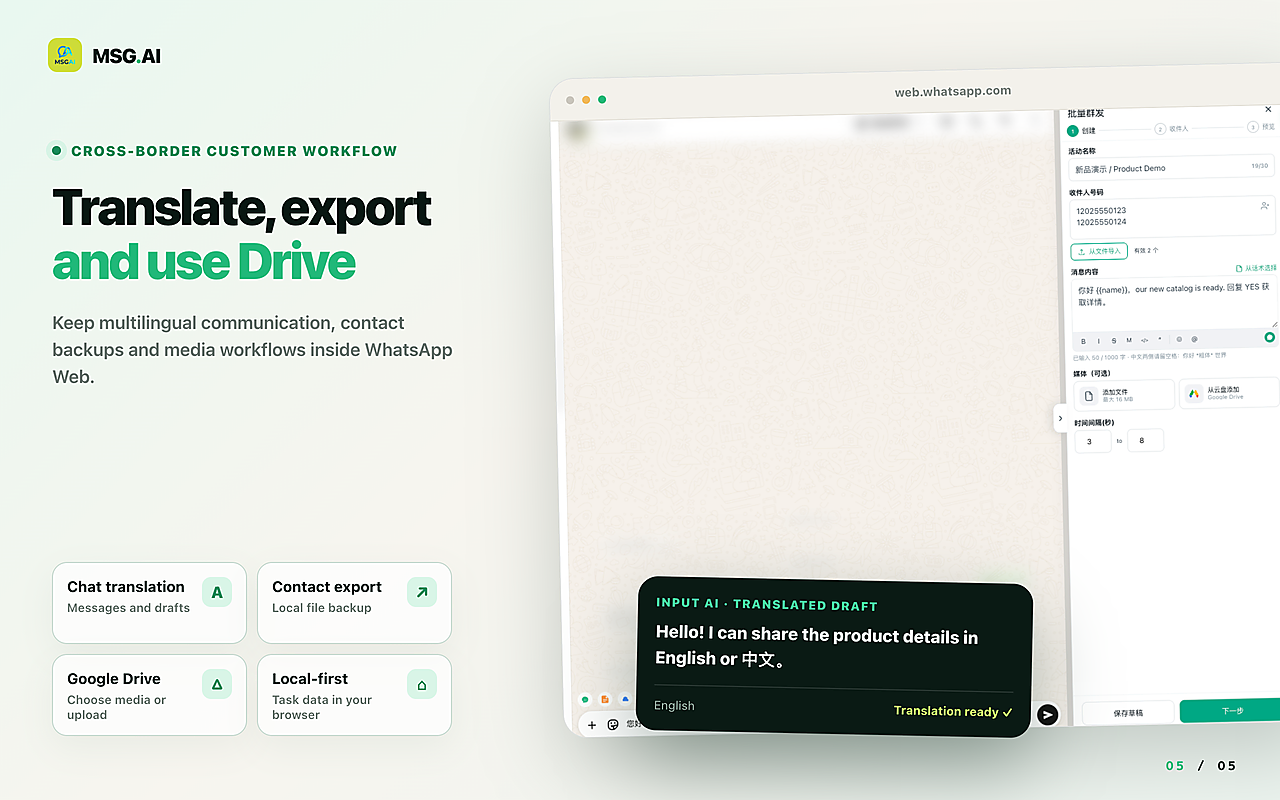
- AI translation – Translate incoming messages inline; compose replies in your language with outgoing translation preview
- AI reply drafts – Generate editable replies from chat context + optional business knowledge base
- Script library – Save and categorize reusable templates for FAQs, payment instructions, greetings
- Google Drive media library – Browse and send images/videos from Drive folders
For feature overview and pricing, visit wsmsg.me or the Chrome Web Store listing.
Step by step
Complete archival workflow: official backup + HTML export
For maximum safety and flexibility, combine WhatsApp's official backup (for restore capability) with MSG.AI HTML export (for readable archives). Here is the recommended workflow.
Step 1: Enable official WhatsApp backup
- 01
Open WhatsApp on your phone
Settings → Chats → Chat backup
- 02
Choose backup frequency
Android: Set "Back up to Google Drive" to Daily, Weekly, or Monthly. iPhone: Enable iCloud Drive for WhatsApp and tap "Back Up Now."
- 03
Optional: Enable end-to-end encrypted backup
Requires a password or 64-digit encryption key. Adds extra security but means you cannot restore without the password—store it safely.
- 04
Verify backup completed
Check "Last backup" timestamp. Ensure Google Drive or iCloud has enough free space.
Step 2: Export selected chats to HTML for readable archives
- 05
Open WhatsApp Web and MSG.AI
Wait until the chat you want to archive is loaded in the browser session.
- 06
Navigate to Bulk Export
Select the chat-transcript section in MSG.AI panel.
- 07
Choose the contact or group
Confirm the conversation name and date range.
- 08
Choose local download or Google Drive upload
For personal archives, download HTML locally. For team sharing or cloud backup, authorize Google Drive and upload.
- 09
Open and verify the HTML file
Check sender names, timestamps, message sequence. Store in an organized folder structure (e.g., "WhatsApp Archives/2026/Project Name/").
Step 3: Organize and retain archives according to policy
- Label files clearly – Use descriptive names: "CustomerSupport_JohnDoe_2026-09-28.html"
- Set retention rules – Keep customer service records for X years; delete expired exports to manage storage
- Restrict access – Store archives in access-controlled folders; do not share sensitive exports publicly
- Backup your archives – If archives are critical, keep redundant copies (local + cloud)
This two-layer approach gives you restore capability (official backup) and readable reference copies (HTML export) without relying solely on one method.
Legal and ethical considerations
Privacy, consent, and data handling for chat archives
Exporting or archiving chat content involves personal data—sometimes sensitive. Follow these principles to stay compliant and ethical.
Consent and authorization
- Export only chats you are authorized to retain – If you are an employee, follow company policy. Personal chats require participant consent in some jurisdictions (GDPR, CCPA).
- Inform chat participants if required – Some privacy laws require notice when personal data is processed or archived. Check applicable law.
- Do not export chats for unauthorized purposes – Exporting a customer's chat to use their data for unrelated marketing is a violation.
Storage and access control
- Store archives in encrypted or access-controlled locations – Not on public cloud links or shared drives without permissions
- Review Google Drive sharing settings – Default "Anyone with the link" is risky for confidential chats
- Use business accounts for work archives – Separate business and personal Google accounts to avoid accidental sharing
Retention and deletion
- Define retention periods – "Keep customer support chats for 3 years, then delete" is clearer than indefinite storage
- Delete expired archives – Retaining data longer than necessary increases risk and may violate privacy law
- Honor deletion requests – If a customer or chat participant requests data deletion under GDPR/CCPA, include archived exports in your deletion process
Third-party tools and data processing
- Review extension privacy policies – Where is export processing done? Does the tool store chat data?
- Avoid uploading sensitive chats to AI tools – Do not paste customer support transcripts into ChatGPT or similar for summarization without valid purpose and permission
- Evaluate data residency – If you are subject to strict data-residency rules (EU GDPR, China PIPL), verify where the extension processes data
For more on WhatsApp Web data handling and security practices, see the WhatsApp Web customer-service toolkit guide.
Ready to create readable chat archives?
Enable official backup first, then add HTML export for records
Set up WhatsApp's Google Drive or iCloud backup on your phone for restore capability, then use MSG.AI to export selected chats as readable HTML for archival, sharing, or compliance needs. Both approaches complement each other—neither replaces the other.
Frequently asked questions
FAQ
Can Chrome extensions back up WhatsApp chats?
Chrome extensions can export or archive WhatsApp Web chats as readable files (HTML, PDF, CSV)—but these exports are not WhatsApp's official encrypted backup format and cannot be restored into WhatsApp. Use them for records, handoffs, and reference, not for phone migration or account recovery.
What is the difference between WhatsApp backup and chat export?
WhatsApp backup (Google Drive/iCloud) is an encrypted database that preserves messages, media, and settings for official restore on a new phone. Chat export creates a readable copy (TXT, HTML, or via extension) for viewing or archiving—it does not restore into WhatsApp.
Can I restore a Chrome extension export back into WhatsApp?
No. Chrome extension exports are human-readable archives, not WhatsApp's encrypted restore format. Official backups to Google Drive (Android) or iCloud (iPhone) are required for WhatsApp restore functionality.
Can I backup WhatsApp chats on my computer?
You can export or archive chats from WhatsApp Web to your computer using extensions like MSG.AI (HTML format) or WhatsApp's native export (TXT). These are readable copies, not official backups. Official backups stay on your phone and sync to Google Drive or iCloud.
Does MSG.AI replace WhatsApp's official backup?
No. MSG.AI exports WhatsApp Web chats to readable HTML or Google Drive for archival purposes. It does not create WhatsApp's encrypted backup format and cannot restore messages into WhatsApp. For phone migration or account recovery, use WhatsApp's official Google Drive or iCloud backup.
Can I save WhatsApp chat backups to Google Drive using a Chrome extension?
Chrome extensions like MSG.AI can export chats as HTML and upload them to your Google Drive as readable archives. This is different from WhatsApp's automatic Google Drive backup (encrypted database). Extension exports are for viewing and reference; official backups are for restore.
Export capabilities and limits verified September 28, 2026. MSG.AI provides archival exports, not restore-capable backups. Always maintain WhatsApp's official Google Drive or iCloud backup for device migration and account recovery.